Voor.ai
Voor.ai
AI AvatarHistoryPricing
Voor.ai

The unified studio for the best AI image & video models. One prompt. Every modality. Production quality in seconds.

Tools
  • Text to Video AI
  • Image to Video AI
  • Text to Image AI
  • Image to Image AI
  • AI Creative Agent
More tools
AI Video Models
  • Seedance 2.5
  • Muse Video
  • HappyHorse 1.1
  • Seedance 2.0 Mini
  • Kling 3.0 Turbo workflow
  • Veo 3
  • Kling v2.1
  • Vidu Q3
More video models
AI Image Models
  • Seedream 5 Lite
  • Seedream 5 Pro
  • GPT Image 2
  • Nano Banana 2
  • Nano Banana
  • Ideogram v3 Quality
  • Seedream 4.5
  • Seedream 4
More image models
Company
  • Pricing
  • Blog
  • What's New
  • Contact Us
  • Terms and Conditions
  • Privacy Policy
  • Refund Policy
  • SeeWhatNewAI
  • Findly.tools
  • CurateClick
  • YouTube
  • Discord
Partners
  • Krea 2 AI workspace
  • Seedance 2.5 AI workspace
  • Seedream 5.0 Pro workspace
  • Toolsify AI directory
  • AI Website Directory listing
  • FutureTools AI directory
  • ShowMySites directory
  • make.rs maker directory
  • Featured on ToolDirs
  • Featured on Wavel
  • Stork Verified — stork.ai AI tools directory
  • Featured onAInexfinder — AI Tools Directory
  • AiTop10 Tools
  • Featured on AI Tool Zaar
  • LogoFeatured onTools Rollerss
  • Featured on Smol Launch
  • Featured on AIExtension.ai
  • Featured on Findly.tools
  • Featured on DeepLaunch.io
  • Featured on ShowMeBestAI
  • Featured on Twelve Tools
  • Launched on Fazier
  • Good AI Tools
  • Listed on Turbo0
  • Voor AI - Featured on Startup Fame
  • Featured on Aura++
  • Featured on toolfame.com
  • Featured on saasfame.com
  • Featured on aitoolfame.com
  • Featured on FoundrList
  • OpenHunts Club Member
  • Featured on PopWebTools
  • Feature On Launch Vault
  • Featured on AIBoom.Tools
  • Listed on SaaS Cubes
  • Featured on Web Review
  • Featured on Dofollow.Tools
  • Featured on SumoDir
  • Featured on Wired Business
  • Featured on FreeAI
  • Featured on Gets.Tools
  • Featured on AIBlog.Tools
  • Featured on doforai.tools
  • Listed on SwapLink
  • Featured on Best AI Tool
  • Featured on AiWebsite.run
  • Featured on LaunchBoosts
  • SeekTool.ai Tools Directory
  • Top AI Tools
  • AI Tool Trek
  • List on Similarlabs
  • YouWant.ai
  • What Is Ai Tools
  • Launched on Tiny Startups
  • Listed on uno directory
  • Powered by Startup Fast
  • Featured on submitdeck.com
  • Featured on TheAIToolsDir
  • Featured on Toolfio
  • Featured on NewTool.site
  • Find us on Indie.Deals
  • Verified on DANG!
  • Featured on Starter Best
  • Find us on Firsto
  • Tool Ignite
  • SaaS Avenue
  • Appsy Tools
  • LiftOff launch badge
  • ai tools code.market
  • Featured on Super Launch
  • Featured on Open-Launch
  • Listed on AI Tools Lister
  • MossAI Tools
  • AI Hustle
  • Featured on geoly.net
  • Submit AI Tools
  • RightAI Tools
© 2026 Voor.ai. All rights reserved.Crafted for creators

Step-by-step How to Use GPT Image 2 on Voor AI — pick the model, write prompts, run edits, download PNG, and iterate without a local GPU.

Required
Paid access required for this setup · 282 credits · failure refunded
Example Image
BeforeBefore — Iterate inside the same panel
AfterIterate inside the same panel

Generator examples

  • Iterate inside the same panelBefore — Iterate inside the same panel
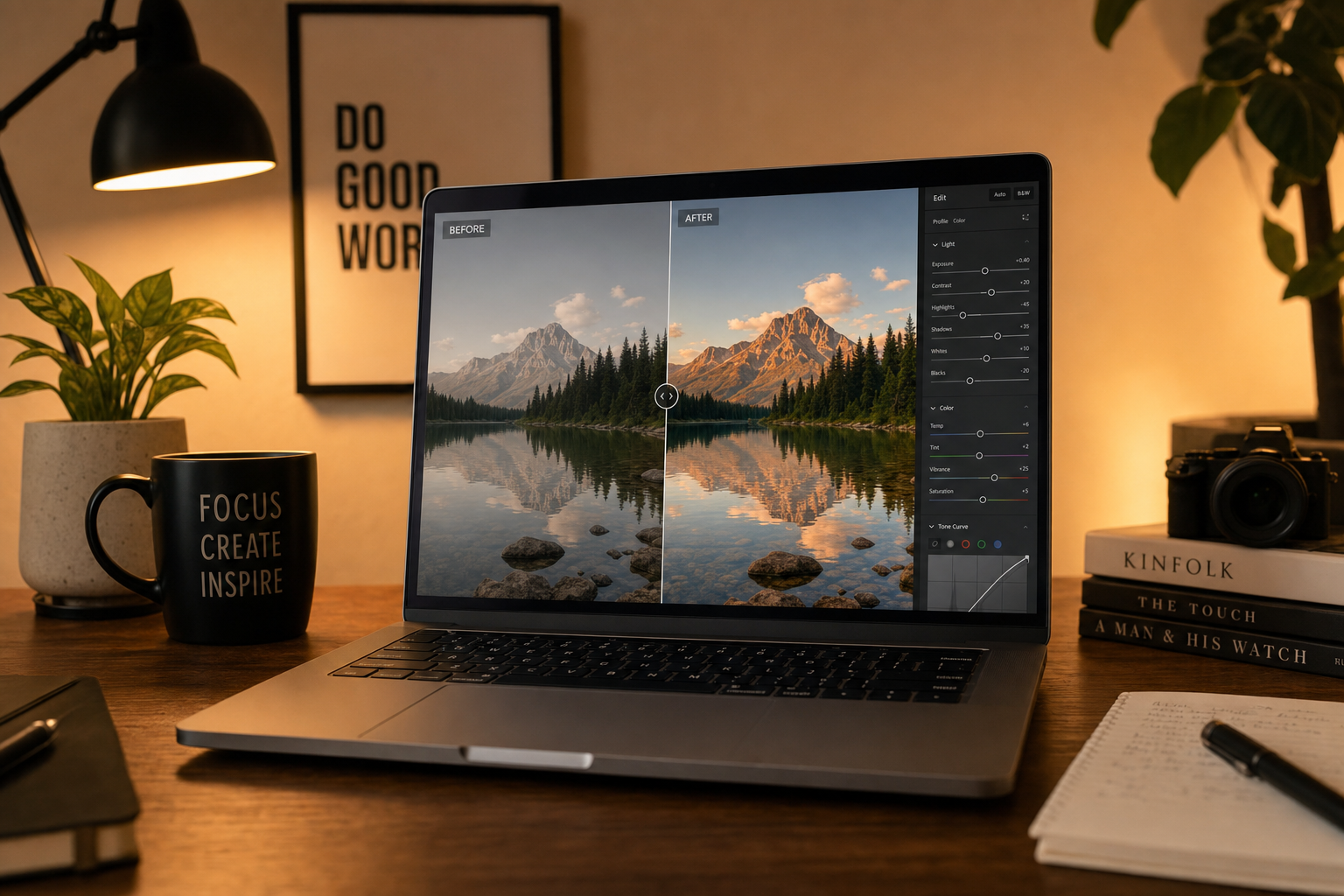
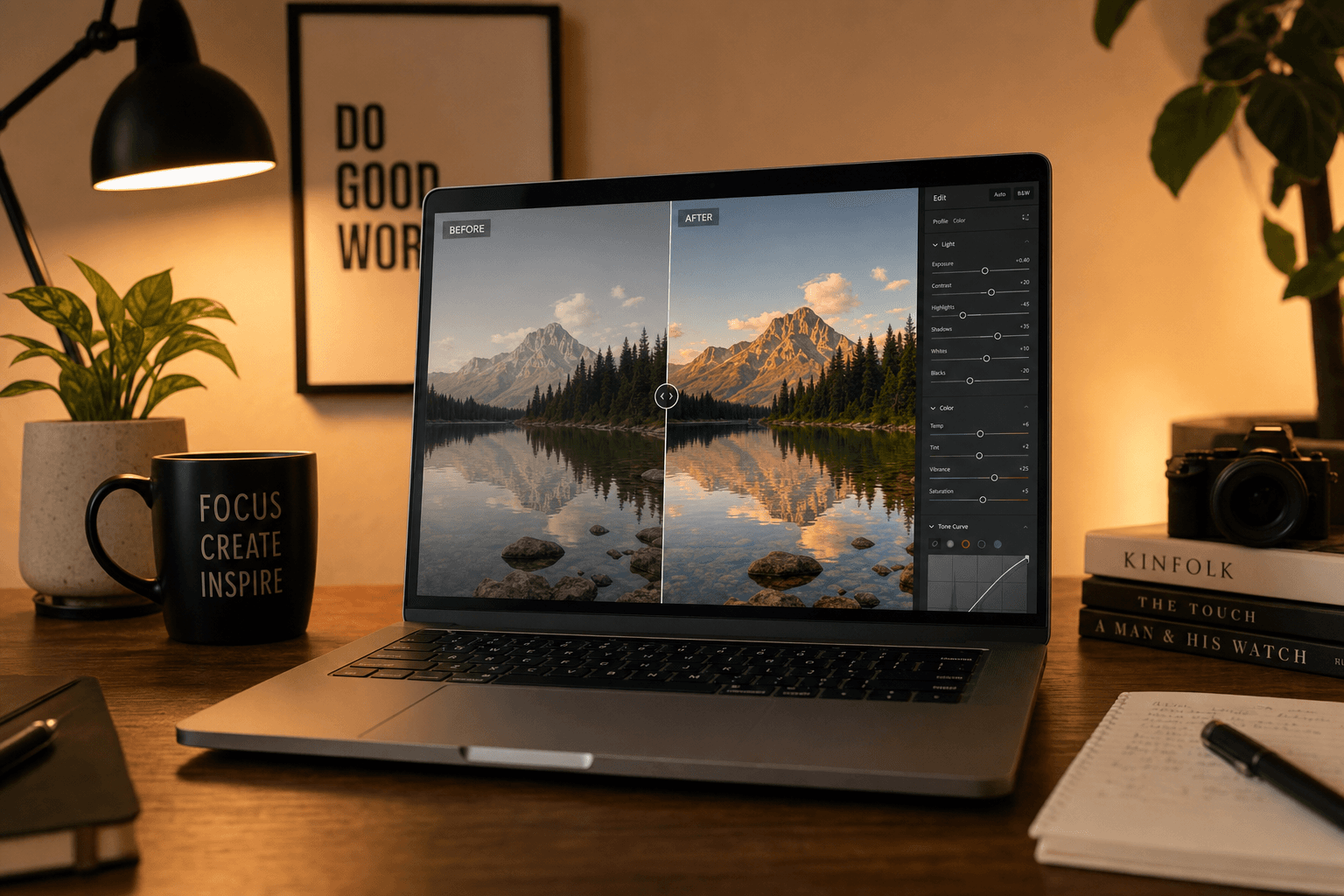
Designer desk running How to Use GPT Image 2 workflow
1. Open generator
Before and after edit on laptop screen
2. Compare two takes
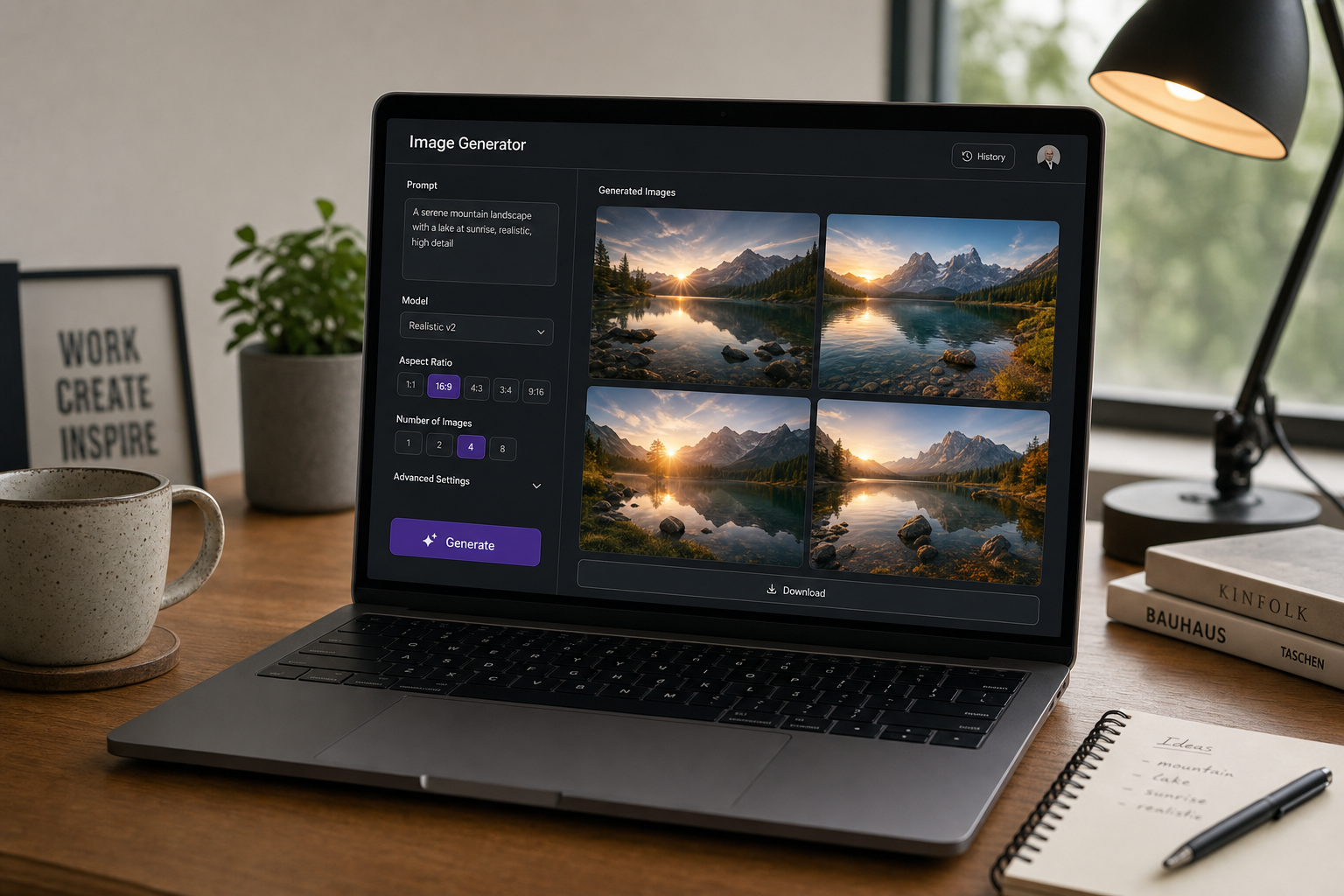
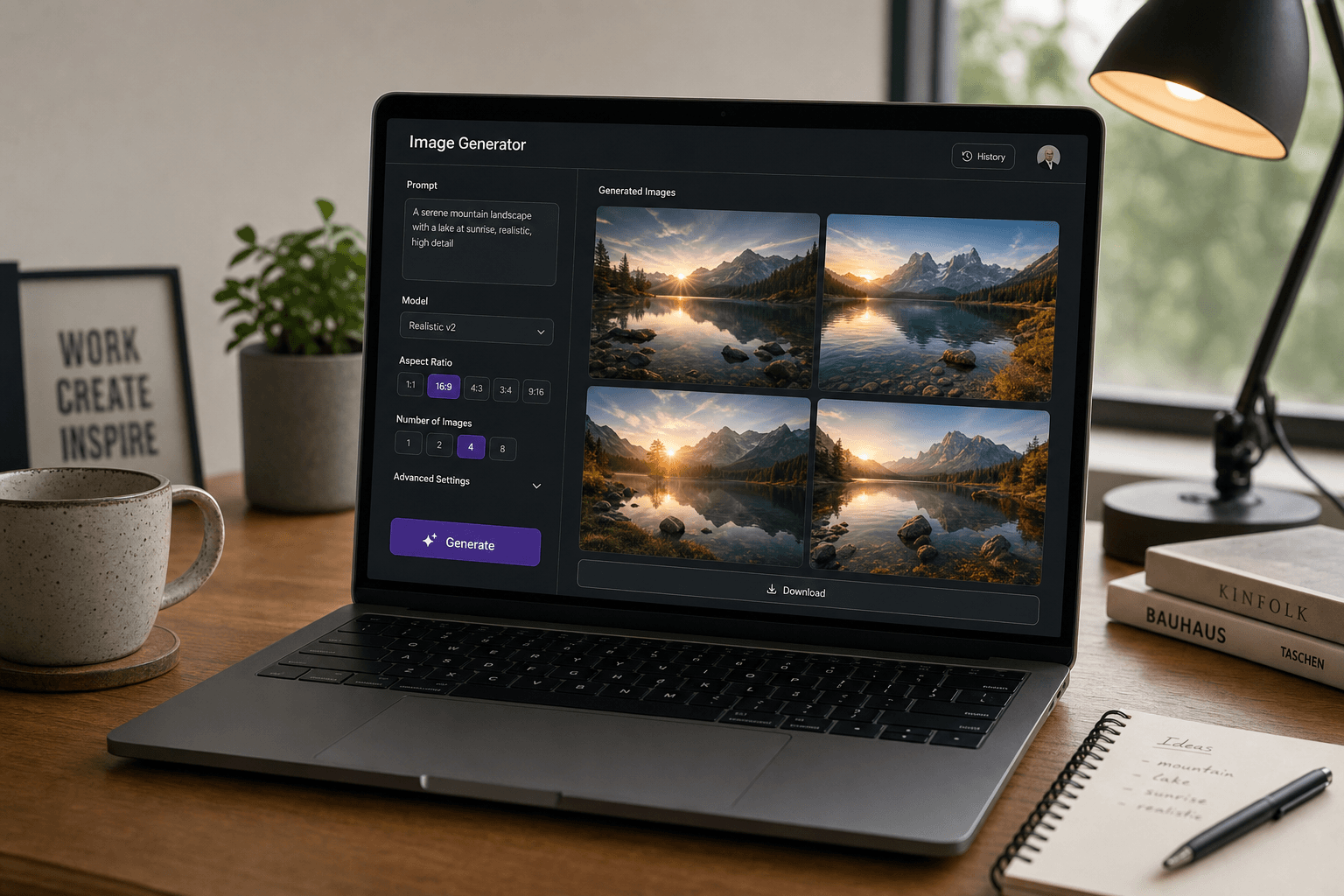
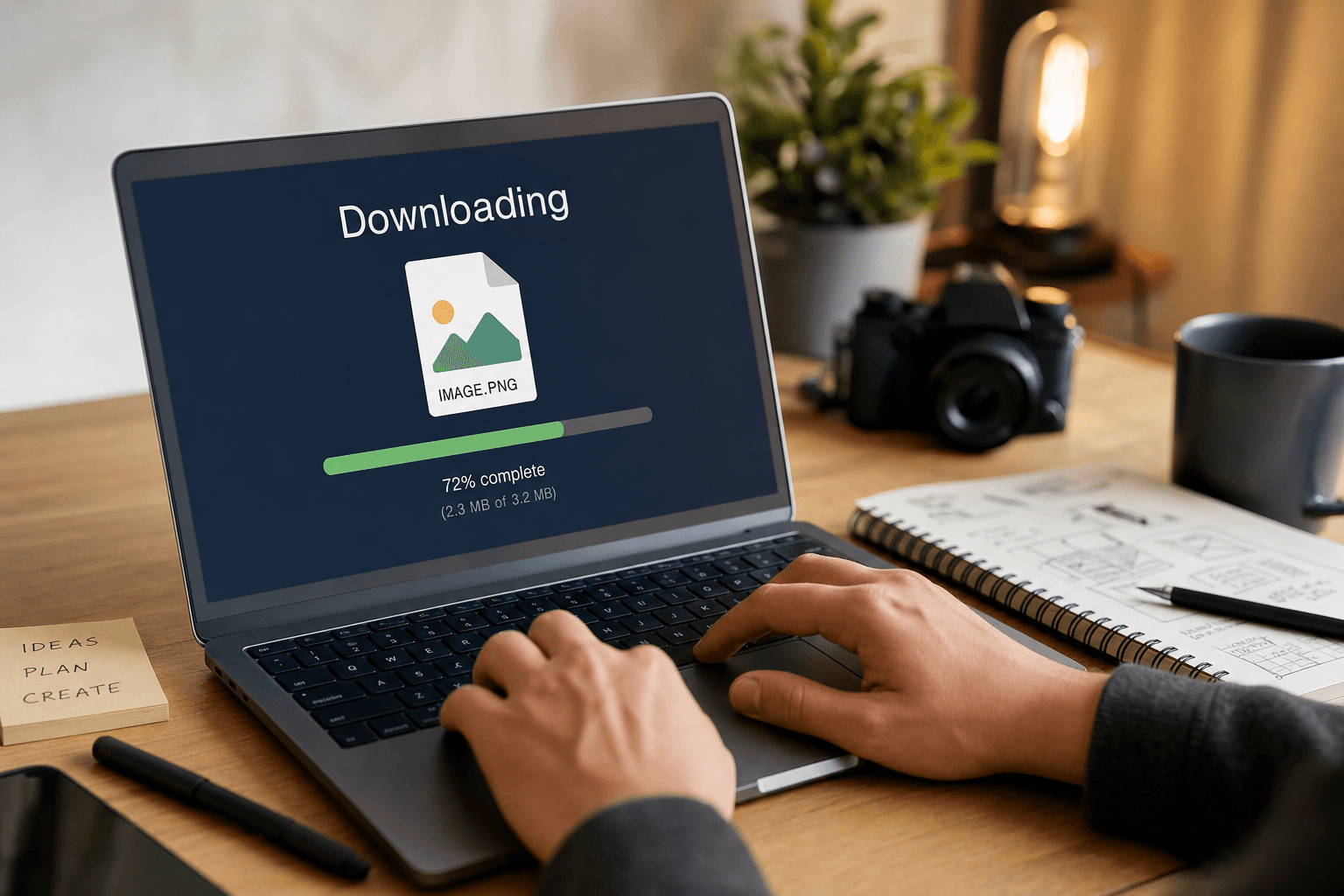
Downloading PNG from GPT Image 2 session
3. Download PNG
Step-by-stepBrowserNo GPU

How to Use GPT Image 2 on Voor AI — browser workflow

How to Use GPT Image 2 starts with a simple fact: you do not need a local CUDA stack. How to Use GPT Image 2 on Voor AI means open the generator, select `openai/gpt-image-2`, write a prompt or upload a reference for edits, spend credits, download PNG. How to Use GPT Image 2 tutorials that skip credit planning frustrate users — check `/pricing` before batch jobs. How to Use GPT Image 2 for marketing follows generate → compare two seeds → edit winners → export → finish in Figma. How to Use GPT Image 2 for product teams adds version-controlled prompt text so reruns match the approved sample. The desk workflow photos above illustrate How to Use GPT Image 2 in context: laptop, UI chrome, before/after edit review — not a CLI screenshot.

Start tutorial
Pick model• Prompt• Download PNG

How to Use GPT Image 2 — five-minute checklist

Follow in order. This is the shortest reliable How to Use GPT Image 2 path.

  1. Sign in and open this route

    How to Use GPT Image 2 with the model pre-pinned saves a misclick. Scroll to #generator.

  2. Write or paste a prompt

    How to Use GPT Image 2 generation: subject + medium + light. Steal recipes from `/gpt-image-2-prompts` if blank.

  3. Generate twice

    How to Use GPT Image 2 economically: two takes, pick winner, discard loser — avoids twenty-click habits.

  4. Optional edit pass

    How to Use GPT Image 2 edits: upload winner, prompt 'Change ONLY background to warm gray seamless, keep subject identical'.

  5. Download and document

    How to Use GPT Image 2 in teams: save PNG + prompt text + model ID in the ticket. Reproducibility is part of How to Use GPT Image 2.

Open generator

How to Use GPT Image 2 — interface map

Know these controls before deep How to Use GPT Image 2 sessions.

Designer desk running How to Use GPT Image 2 workflow

Model picker

How to Use GPT Image 2 correctly requires `openai/gpt-image-2` — not Nano Banana, not FLUX. Pin the model before prompting.

Before and after edit on laptop screen

Aspect ratio

How to Use GPT Image 2 for Stories picks 9:16 before writing copy. Changing ratio after burns credits.

Downloading PNG from GPT Image 2 session

Image upload for edits

How to Use GPT Image 2 edit mode needs a sharp master. Upload PNG, then an ONLY instruction in the prompt field.

Download and metadata

How to Use GPT Image 2 ends with PNG export. Rename files with prompt version IDs — future you will thank present you.

What How to Use GPT Image 2 assumes

How to Use GPT Image 2 assumes a Voor AI account with credits and a modern browser. How to Use GPT Image 2 does not require plugins or desktop apps.

How to Use GPT Image 2 editing inherits model stochasticity — two edit passes differ. How to Use GPT Image 2 best practice is dual reroll, not infinite spam.

How to Use GPT Image 2 outputs are raster — convert to SVG manually for logos if brand requires vectors.

Why How to Use GPT Image 2 docs matter

Onboarding designers ask How to Use GPT Image 2 before they ask pricing — good docs reduce support load.

Engineers mirror How to Use GPT Image 2 browser steps in API jobs when prompts match `openai/gpt-image-2` on Replicate.

How to Use GPT Image 2 — FAQ

How to Use GPT Image 2 without credits?+

You cannot render — How to Use GPT Image 2 requires a plan with credits or top-up.

How to Use GPT Image 2 on mobile?+

Browser works; How to Use GPT Image 2 on phone is fine for previews, desktop better for edits.

How to Use GPT Image 2 with multiple images?+

Upload references when the UI supports multi-image — check tool tips on `/gpt-image-2`.

How to Use GPT Image 2 commercially?+

Follow OpenAI/Replicate terms and client brand rules — How to Use GPT Image 2 is not a rights bypass.

How to Use GPT Image 2 right now

Open generator, pin GPT Image-2, prompt, reroll, export. How to Use GPT Image 2 is a five-minute loop once habits stick.

Generate

Voor AI ToolKit

The most relevant Voor AI tools for this workflow. Explore the full catalog for more.

GPT Image 2 Prompts

GPT Image 2 Prompts

Copy-ready GPT Image 2 prompts for portraits, products, posters, and edits — structure, negative cues, and reroll strategy on Voor AI.

What Is GPT Image 2

What Is GPT Image 2

GPT Image 2 is OpenAI's instruction-following image model on Replicate — generation, editing, typography, and multi-image input explained with live examples.

Image to Image AI

Image to Image AI

Transform photos into art styles instantly while preserving structure. Unleash creativity.

Explore more AI tools→