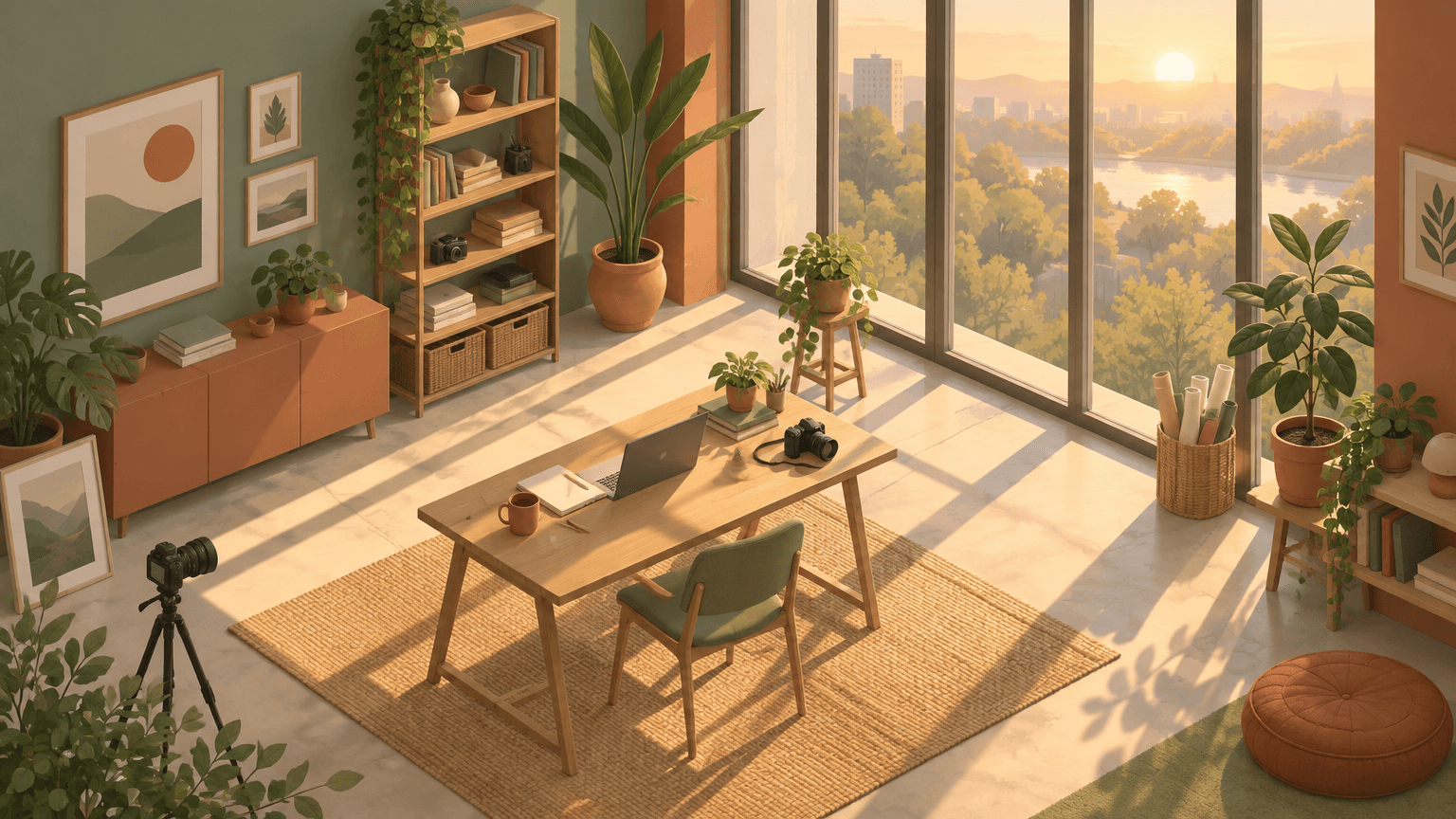

GPT Images 2.5 brings Flare and Sunburst into one workspace for generation and reference edits, with a visible credit quote before each run.

Example Image
Generate and edit images with GPT Images 2.5 Flare and Sunburst, with a visible credit quote before every run.

Generator examples

GPT Images 2.5 / Live image workspace

GPT Images 2.5,
from first idea to final detail.

GPT Images 2.5, also written GPT Image 2.5, gives creators a focused image generator with two routes: Flare for everyday generation and one-reference edits, and Sunburst for precision-focused detail work. Write one brief, choose a canvas, review the credit quote, and create in the browser.

Flare and SunburstGeneration and editingOne reference imageVisible credit quote

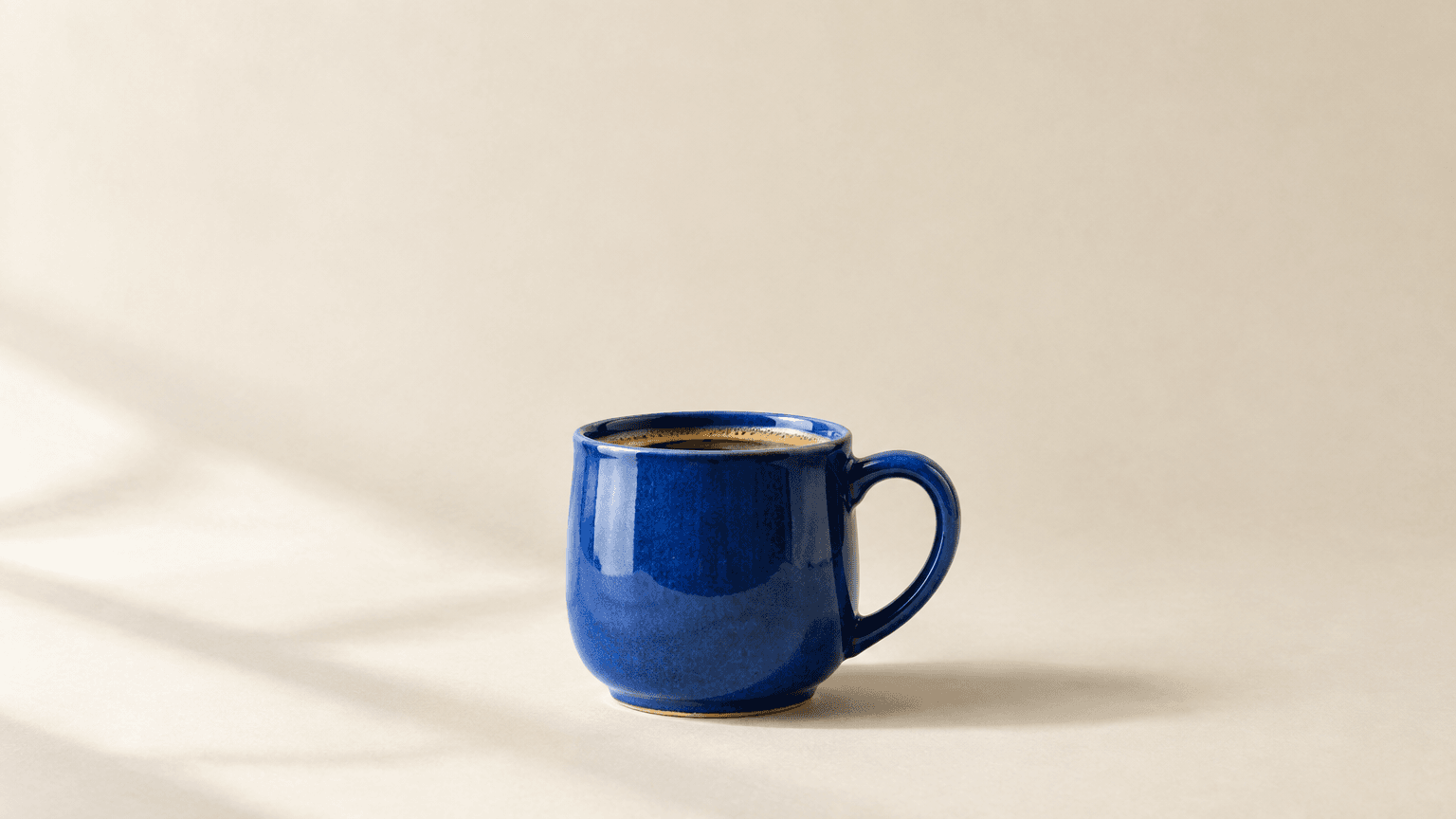
GPT Images 2.5 product prompt direction with a cobalt-blue cup in soft studio light
Actual GPT Images 2.5 Flare output · product photography direction
GPT Images 2.5 poster prompt direction with a sculptural botanical print
Actual GPT Images 2.5 Flare output · vertical poster direction
FlareEveryday generation and editing
SunburstPrecision-focused detail
5 canvasesSquare, landscape, and portrait
1 referenceFor supported edit routes
Medium qualityOne PNG per run

Two routes, one model family

Choose Flare or Sunburst for the stage of the work

GPT Images 2.5 is most useful when the workflow is visible. Flare gives you a fast, balanced first direction. Sunburst gives the same brief more room for detail when the composition is worth a precision pass.

01 / FLARE

Flare is the everyday starting point

Use GPT Images 2.5 Flare when the brief needs a clean first answer without a long setup. It handles product scenes, social layouts, character ideas, and one-reference edits with the same clear workflow.

  • Text to image
  • One-reference edit
  • Balanced speed
  • Medium quality
02 / SUNBURST

Sunburst is the precision pass

Move to GPT Images 2.5 Sunburst when the composition is already working and details matter more than speed. It is the route for polished stills, careful edits, and a more finished final frame.

  • Text to image
  • One-reference edit
  • Detail-focused
  • Medium quality
03 / ONE WORKSPACE

Test both without rewriting the brief

GPT Images 2.5 keeps the prompt, canvas, and reference in the same Voor workspace. Switch between Flare and Sunburst to compare how the same idea resolves without losing your place.

  • Five canvas shapes
  • Visible credit quote
  • Saved generation history
  • No model guesswork

Prompt directions

GPT Images 2.5 examples start with a clear brief

These images were generated with GPT Images 2.5 Flare on Voor for the prompt directions below. They are original outputs created for this guide, not third-party sample assets. Generate your own image to review the model with your brief.

About these examples: the images on this page were generated with GPT Images 2.5 Flare on Voor. They are our own outputs, not third-party sample files, and they do not carry another platform’s watermark or brand copy. Always review your own result before publishing.

A repeatable prompt structure

How to write a GPT Images 2.5 prompt

GPT Images 2.5 follows a clear brief. Order the prompt like a production note: deliverable, subject, composition, light, material, and the details that must stay fixed on an edit.

A useful order for GPT Images 2.5

Start with the output type, then add one decision at a time. Prompt writing is easier to review when every sentence answers a visible question instead of stacking quality adjectives.

For editing, write the preserved details before the change. That single habit makes GPT Images 2.5 edits more predictable and easier to compare against the source.

Prompt template

Output type + subject Composition: crop, angle, placement Light: source, direction, contrast Material: surface, texture, finish Exact details: text, objects, colors For edits: preserve these details first
01

Name the deliverable

Start with the output type and the subject. A product photo, editorial poster, or character frame should be obvious in the first clause of the prompt.

02

Describe the composition

Add crop, camera angle, subject placement, and the empty space a headline or logo may need later. Composition language keeps the image useful after generation.

03

Direct light and material

Name the light source, direction, contrast, surface, and texture. GPT Images 2.5 responds well to concrete visual decisions instead of a long list of style names.

04

State what must not change

For an edit, list the preserved details before the requested change. That order makes it easier to review the result against the source image.

Where it works well

GPT Images 2.5 is built for controlled image work

The strongest use cases share the same shape: one clear subject, a visible composition decision, and a result that must be reviewed rather than accepted blindly.

Product and campaign stills

Describe the product angle, material, light, and the empty space needed for campaign copy. GPT Images 2.5 is useful when the composition must survive a layout change.

Posters and visual systems

Use a narrow palette, one strong subject, and generous margins. Add exact copy only when it is short enough to inspect in the final image.

Editorial and character studies

Name the pose, camera distance, wardrobe, and light direction. Keep the same brief while testing one visual variable to build a consistent set.

Reference-guided edits

Upload one supported reference image, preserve identity and geometry first, then describe the change. Review the complete frame before downloading.

DecisionFlareSunburst
Best forEveryday generation and fast directionsDetail-focused final passes
CanvasSquare, landscape, portraitSquare, landscape, portrait
EditingOne-reference edit routeOne-reference edit route
OutputMedium quality, one PNGMedium quality, one PNG

Start with Flare when the idea is still moving. Move to Sunburst when the brief is stable and the image needs a more careful detail pass. Use the live credit quote in the generator to compare the two routes before you run.

Comparing image models? Read the GPT Image 2 page for the earlier generation, try Nano Banana 2 for fast Gemini-style exploration, or start at text to image for the full workspace.

GPT Images 2.5 questions

What is GPT Images 2.5?

GPT Images 2.5 is an image generation and editing model family used on Voor AI. The workspace exposes Flare for everyday generation and editing, and Sunburst for precision-focused work.

What is the difference between Flare and Sunburst?

Flare is the balanced starting point for product images, social visuals, and concept exploration. Sunburst spends more time on detail-focused generation and edits when a composition needs a more finished result.

Can GPT Images 2.5 edit an image I upload?

Yes. Choose an edit route, upload one reference image, and describe what should change and what should stay the same. Review the returned image against the source because generative edits can alter more than the requested detail.

Which aspect ratios are available?

GPT Images 2.5 routes on this page support square, landscape, and portrait canvases. The exact canvas is fixed by the selected aspect ratio before generation, and the credit estimate is shown before you run.

How much does a GPT Images 2.5 image cost?

The generator displays the exact credit cost for the selected model and mode before submission. Flare and Sunburst use different provider costs, so the quote can change when you switch model or choose an edit route.

Can I use the output commercially?

Review the current terms and make sure you have rights to any reference image you upload. Inspect generated text, logos, and recognizable people before publishing.

Start with the brief you already have

Test Flare for a first direction, then move to Sunburst when the composition is worth a precision pass.

Open the GPT Images 2.5 generator