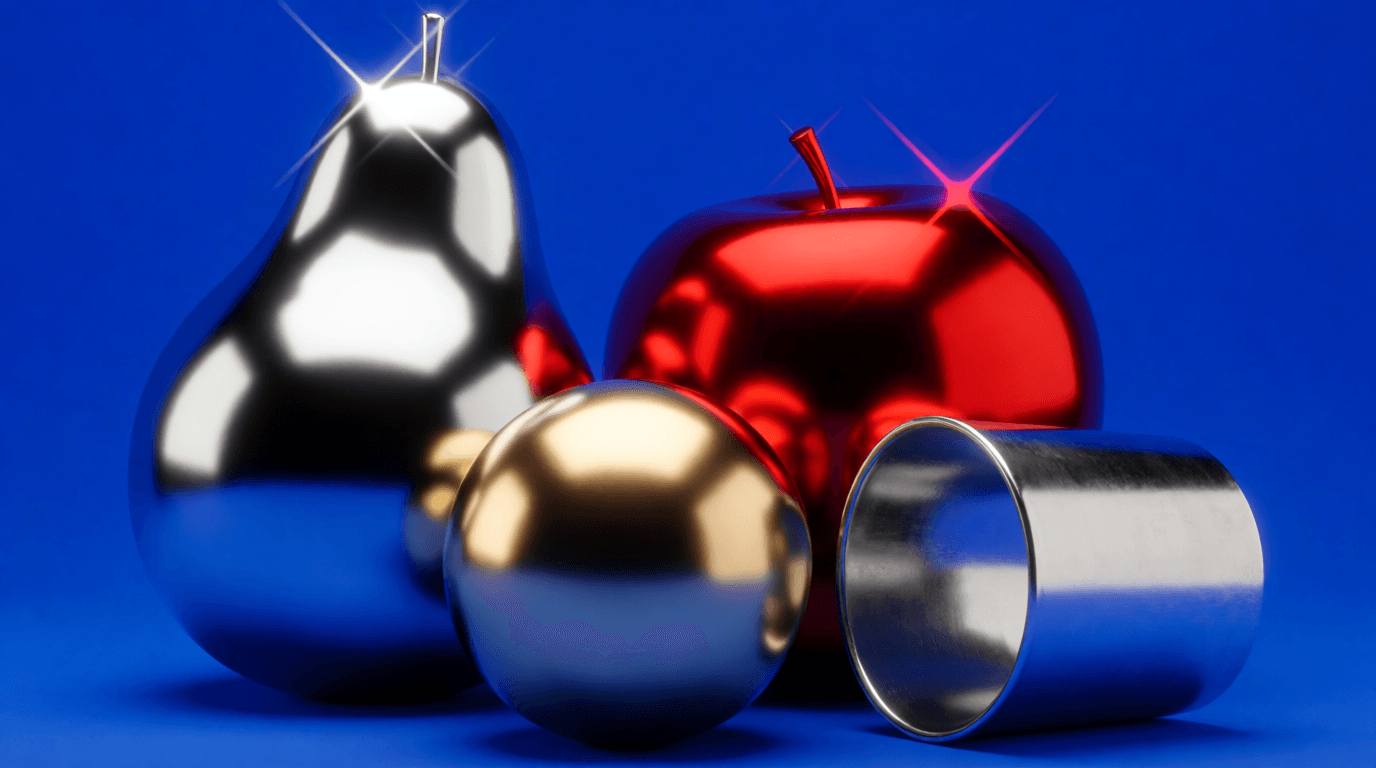
Krea 2 brings expressive lighting, texture, and composition to the shared workspace. Choose Large, Medium, or Turbo, set creativity, and use reference images when the look matters.

Example Image
Create expressive, art-directed images with Krea 2 Large, Medium, and Turbo, plus image style references.

Generator examples

Krea 2 / Expressive image generation

Krea 2 makes
the image feel authored.

Krea 2 is an AI image generator built for grain, texture, expressive light, and compositions that take a stance. Use Krea 2 Large, Medium, or Medium Turbo for text-to-image work, and guide the look with reference images when the art direction matters as much as the subject.

Large, Medium, TurboStyle reference routeSix canvas shapesVisible credit quote

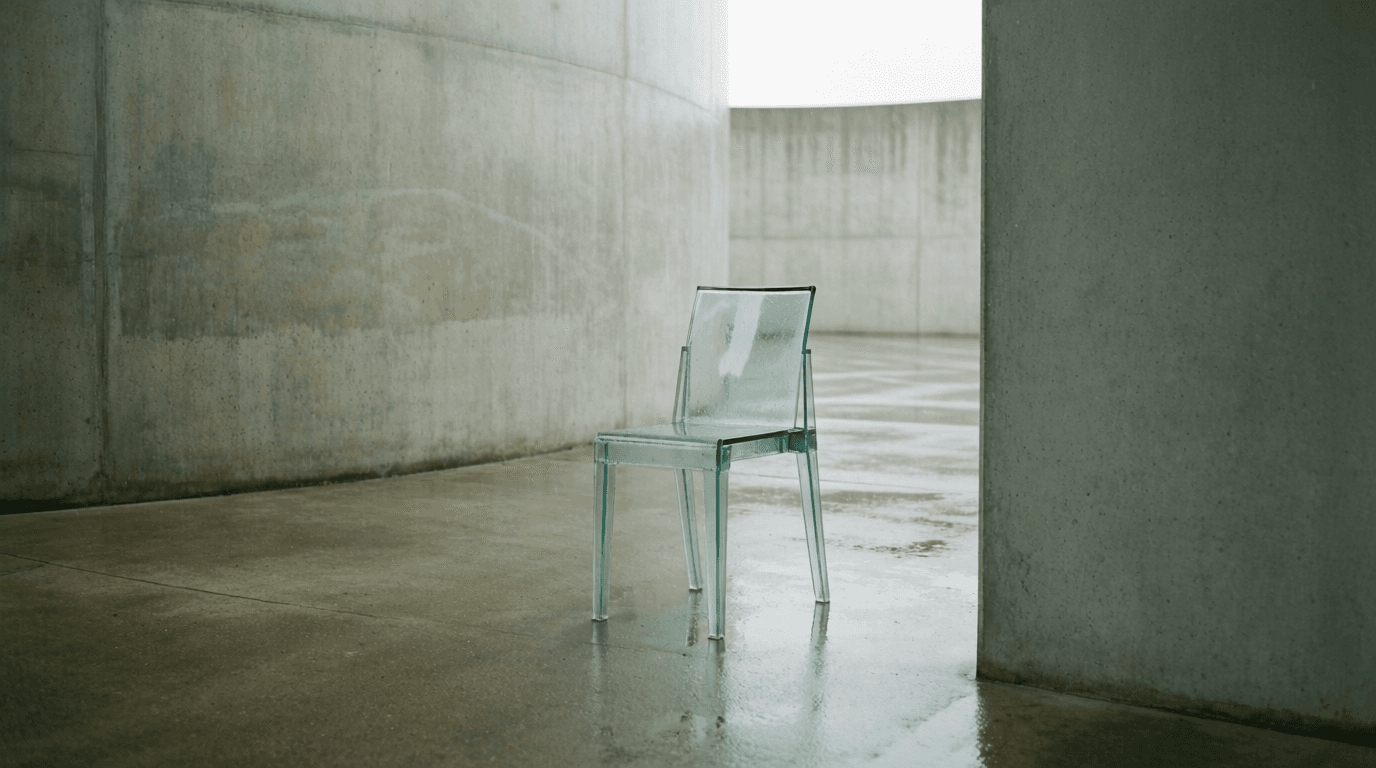
Krea 2 concept study with a translucent glass chair in a brutalist gallery
Actual Krea 2 Medium output · material and overcast light
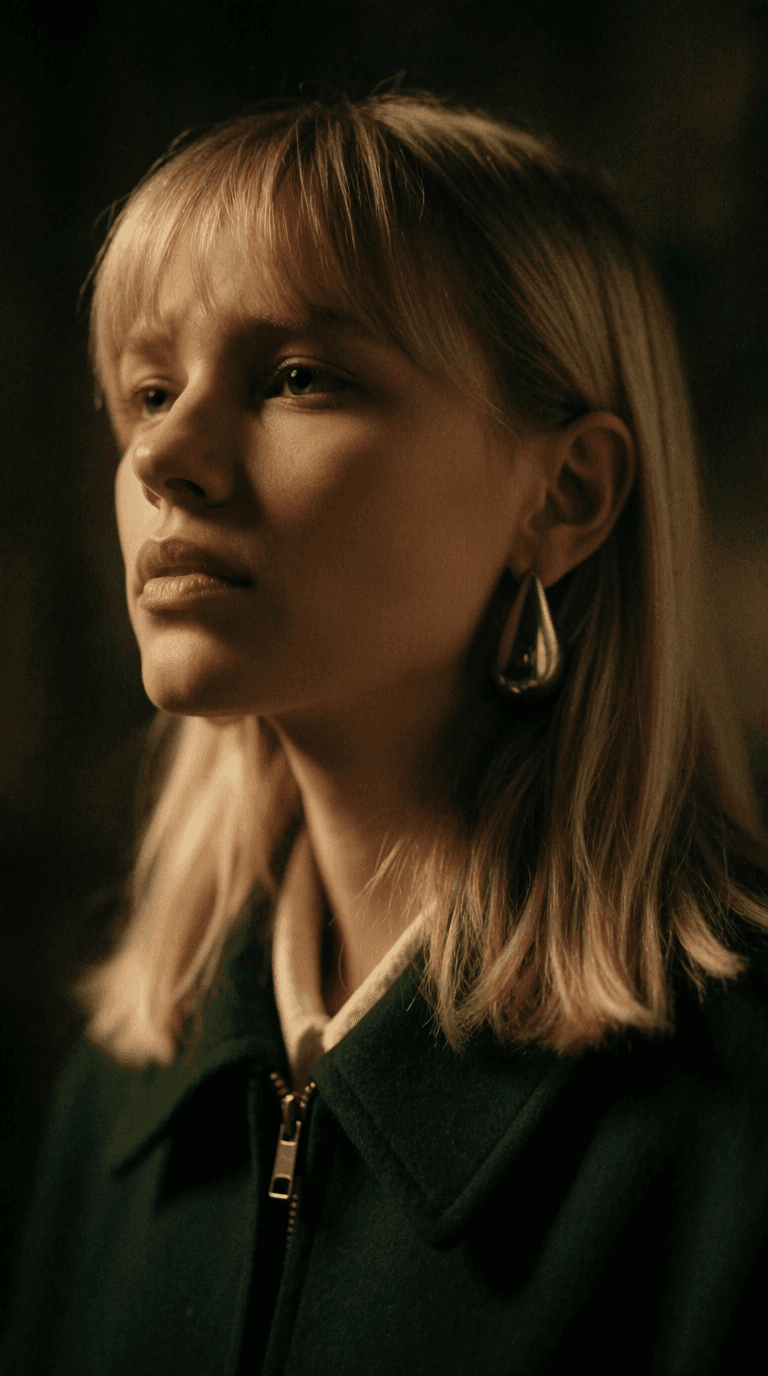
Krea 2 portrait concept study with warm tungsten light and film grain
Actual Krea 2 Medium output · warm editorial portrait
LargeHigher-fidelity finish
MediumBalanced everyday default
TurboFast exploration lane
Style referenceGuide look with images
CreativityControl interpretation room

Krea 2 model tiers

Pick the Krea 2 route for the stage of the work

Krea 2 is not one generic setting. Medium is the practical default, Turbo is the fast iteration lane, and Large is the higher-fidelity pass for a resolved direction.

01 / MEDIUM

Krea 2 Medium is the balanced default

Start with Krea 2 Medium for most prompts. It is the practical route for subject, composition, palette, and creativity testing before you spend on a higher-fidelity pass.

  • Balanced quality
  • Lower cost
  • Five aspect ratios
  • Everyday direction
02 / LARGE

Krea 2 Large is the finish line

Move to Krea 2 Large when the composition is resolved and the image needs more texture, light control, and final-frame confidence.

  • Higher fidelity
  • Richer material
  • Final stills
  • Detail-focused
03 / TURBO

Krea 2 Medium Turbo is the fast lane

Use Krea 2 Medium Turbo for rapid concept passes, moodboards, and variations. It keeps the family look while making exploration cheaper and faster.

  • Fast iteration
  • Concept passes
  • Moodboards
  • High volume

Krea 2 prompt directions

Krea 2 examples reward real art direction

These images were generated with Krea 2 Medium on Voor for the portrait, material, and still-life directions below. They are original outputs created for this guide, not third-party sample assets. Generate your own result in the live workspace.

Original Voor studies: the visuals on this page were generated as prompt-direction studies. They are not third-party showcase files, and they do not carry another platform’s watermark or brand copy. Generate your own Krea 2 image to review the actual model result.

Creativity and style reference

Two controls that shape the Krea 2 look

Creativity controls how much room Krea 2 has to interpret the brief. The style-reference route uses uploaded images to guide texture, palette, and mood without replacing the written subject.

Start with intention, not a keyword pile

Keep a Krea 2 prompt concrete. Name the subject and action, then add the frame, light, material, and finish. Lower creativity keeps the written brief literal; higher creativity lets Krea 2 propose more composition and aesthetic direction.

For style reference, upload one or more images and describe the new subject. The references guide visible traits such as palette, texture, and light rather than becoming the subject itself.

Krea 2 prompt structure

Subject + visible action Frame: crop, angle, distance Light: source, direction, contrast Material: surface, texture, grain Palette: dominant and supporting colors Reference: what the images should guide
01

Name the invariant

Write the subject, action, and required objects in one plain sentence. These are the details that should survive every Krea 2 style decision.

02

Direct visible choices

Add viewpoint, crop, light source, palette, material, texture, and medium. Concrete visual language gives Krea 2 more useful direction than style-name chains.

03

Set creativity

Use lower creativity when the prompt must stay literal. Raise it when the composition feels under-directed and Krea 2 should contribute more aesthetic range.

04

Change one variable

Keep the base prompt stable and change only crop, palette, material, or creativity. That is how a Krea 2 session becomes a repeatable workflow instead of a random reroll.

Krea 2 use cases

Where Krea 2 earns its place in the workflow

Use Krea 2 when the image needs atmosphere, texture, and a recognisable point of view rather than a neutral product render.

Campaign and editorial concepts

Explore art direction with film grain, hard flash, available light, or an unexpected crop. Compare one controlled variable at a time.

Illustration and graphic worlds

Krea 2 handles expressive illustration, poster-like graphics, and painterly texture when the prompt names the medium and the visual hierarchy.

Material and product studies

Describe reflection, surface, translucency, and the light source to keep a still life physically legible while still expressive.

Moodboards with style reference

Upload references for palette, grain, or mood, then write a new subject. Use the result as a direction, not a promise of an exact copy.

DecisionChoose MediumChoose TurboChoose Large
Best forMost prompts and first passesFast concepts and variationsFinal frames and fine detail
Workflow stageExplore the subjectTest many directionsFinish the chosen direction
Style referenceAvailable on the style routeAvailable on the style routeText-to-image focus

Start on Medium. Compare a controlled pair, then move to Large only when the direction is stable. Krea 2 rewards a clear visual brief and a small, disciplined set of changes.

Comparing image models? See how FLUX.1 Krea differs from Krea 2, try GPT Images 2.5 for instruction-led work, or browse text to image for the wider catalog.

Krea 2 questions

What is Krea 2?

Krea 2 is Krea's in-house image model family. On Voor AI, Large, Medium, and Medium Turbo are available for text-to-image work, plus a style-reference route for guiding the look with uploaded images.

Which Krea 2 model should I start with?

Medium is the balanced default for most prompts. Turbo is the fast exploration lane when speed matters, and Large is the higher-fidelity pass once the direction is worth more detail.

What does the creativity control do?

Creativity controls how much room Krea 2 has to contribute composition and aesthetic direction. Use a lower setting when the written brief must stay literal, and a higher setting when the model should explore.

How does Krea 2 style reference work?

Upload up to four reference images and describe the new image. The reference images guide style, texture, palette, and mood rather than replacing the written subject.

How much does a Krea 2 image cost?

The generator shows the credit quote for the selected Krea 2 route and settings before you submit. Large, Medium, Turbo, and style reference use different provider costs.

Can I use Krea 2 output commercially?

Review the current terms and make sure you have rights to every reference image you upload. Inspect the result before using it in published work.

Put Krea 2 on the next brief

Start on Medium, compare a controlled variation, then move to Large when the direction is worth a higher-fidelity pass.

Open the Krea 2 generator