Image to Video
image_to_videoInput

Prompt
The dog turns its head and wags its tail in warm sunlight.
Output video
Image-to-video output — dog wagging tail with synced audio
Google Gemini Omni Flash on Voor AI — Image to Video, Reference to Video, and Edit in one bar. Upload, prompt with official patterns, download MP4 with audio.


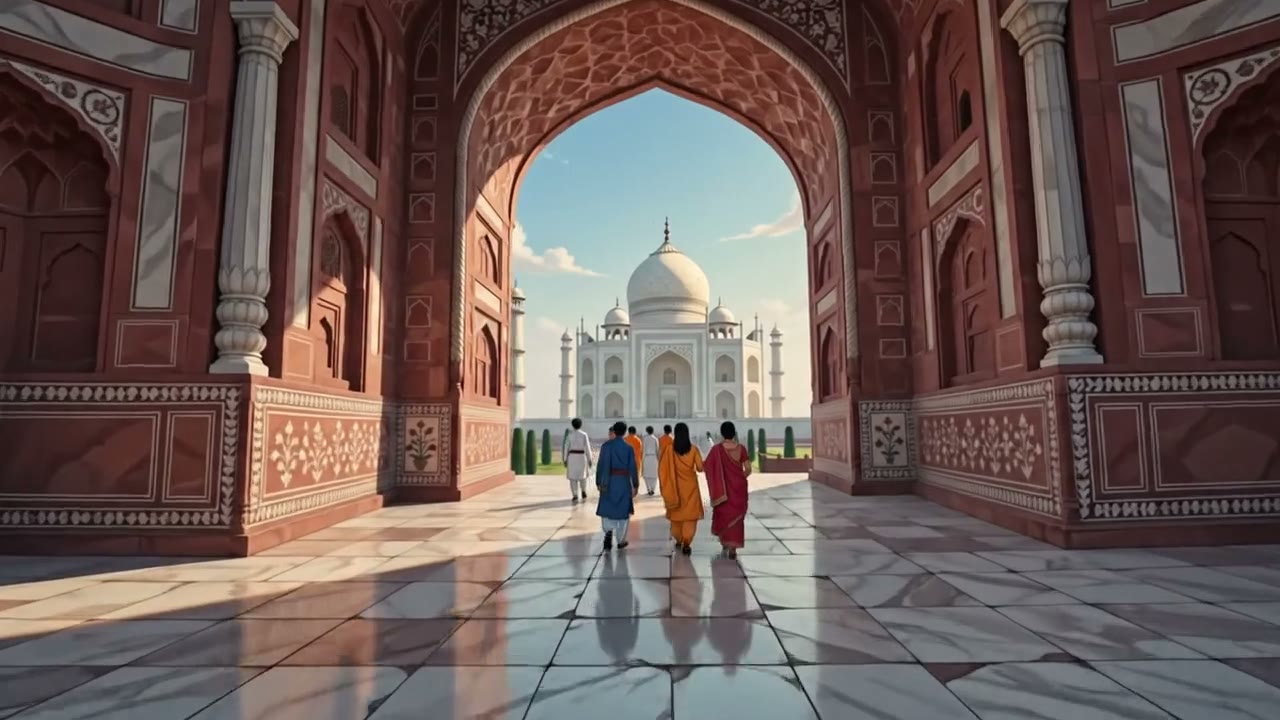
The Omni Flash Generator on Voor AI runs Google's Gemini Omni Flash — a multimodal video model, not camera flash. Pick a mode in the bar above, upload a still or clip, write a prompt, and download MP4. One interface covers image-to-video, reference-to-video, and video editing.
Need prompt-only Text to Video or an explicit 360p, 1080p, or 4K output? Switch to the stable four-mode Gemini Omni 1.1 Flash workspace; use this preview page when you want the original three-mode examples.
I2V
Image to Video
One still becomes a 3–10s clip with synced audio.
R2V
Reference to Video
Up to 10 reference images steer subject and style.
Edit
Edit
One instruction rewrites an existing MP4.
The workflow offers three tasks: Image to Video, Reference to Video, and Edit. Match your upload type to the task, paste a specific prompt, then reroll until motion and audio land.
STEP 1
Image to Video for one still. Reference to Video for storyboard or product refs. Edit for conversational changes on existing footage.
STEP 2
Name camera verbs and audio mood. Tag refs with <IMAGE_REF_0>. For edits, add “Keep everything else the same.”
STEP 3
Generate 3–10s takes with audio on I2V and R2V, download MP4, chain in your editor, or run Edit on the winner.
Each block is a verified Gemini Omni Flash run using the input and prompt shown beside it. The output MP4 is the observed result—not a stock clip. Reproduce the same brief in the generator above.
image_to_videoInput
Prompt
The dog turns its head and wags its tail in warm sunlight.
Output video
Image-to-video output — dog wagging tail with synced audio
reference_to_videoInput

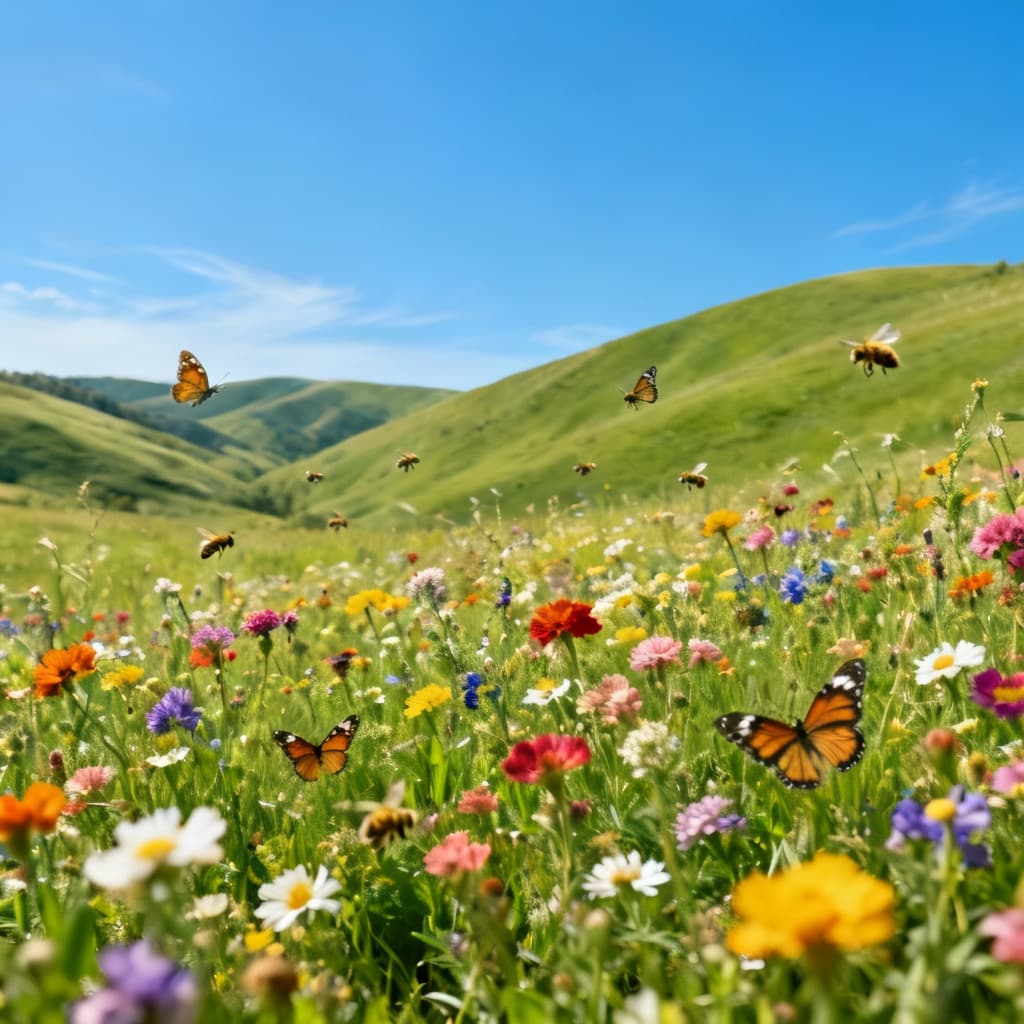
Prompt
A chimpanzee wearing overalls frolics in the grassy field, gently playing with the butterflies. In the background, a circus tent and carousel beckon.
Output video
Reference-to-video output — generated from the two reference stills above
editInput
Prompt
Make this video anime. Keep everything else the same.
Output video
Edit output — same scene after “Make this video anime” pass
Keyframes and mood plates you can upload into Image to Video, Reference to Video, or Edit. Copy the prompt, match the mode, generate.

I2V keyframe
The dog turns its head and wags its tail in warm sunlight — Omni Flash Generator image_to_video.

Edit source still
Make this video anime. Keep everything else the same — Omni Flash Generator edit.

Product I2V
Slow dolly-in on a matte wireless earbud case, soft studio rim light — Omni Flash Generator.

Scene plate
Cozy cafe at golden hour, slow dolly, inviting wide shot — Omni Flash Generator reference_to_video.

Poster mood
A futuristic city with neon lights and flying cars, cyberpunk style, 9:16 — Omni Flash Generator.

Subject lock
Gentle orbit around hero subject, warm studio light, synced ambient audio — Omni Flash Generator.
Google built Gemini Omni Flash as a natively multimodal stack — text, images, audio, and video in, high-resolution video with audio out. The Omni Flash Generator exposes that through three tasks, each with a distinct upload and prompt pattern.
Your still is the first frame. Google recommends specific motion language — “turns its head,” “slow dolly-in” — not vague “make it move.” Output includes synced audio when the scene implies it.
Reference images guide subject and style without becoming literal frames. Bind roles with <IMAGE_REF_n> tags in the prompt. Ideal for character plus product, storyboard frames, or mood boards.
Upload one source MP4 and describe a single change — anime restyle, remove an object, shift lighting. Add “Keep everything else the same.” for local edits. Voice editing is not supported.
01Flash is Google's model name — not camera flash. Write motion verbs, not lighting gear.
02Image to Video: high-res still + specific camera move — avoid vague “make it move” lines.
03Reference to Video: tag uploads with <IMAGE_REF_0> when you need role control.
04Edit: one short instruction per pass; add “Keep everything else the same.” for local changes.
Copy a line, pick the matching mode, upload, and generate. Reroll three times before you rewrite the brief — Google's field-tested patterns outperform generic motion requests across every Gemini Omni Flash task.
High-resolution still plus one camera verb. Your upload becomes the literal first frame.
Reference images guide subject and style — they are not literal first frames. The demo above uses the shown circus and meadow stills with a matching motion prompt. For your own references, tag roles with <IMAGE_REF_n>.
One source MP4 per pass. Google's examples include invisible-object edits and mirror-ripple transforms.
The strongest Omni pages use abundant video and clear mode names. Voor adds the missing decision layer so source media, reference media, and edit media are not confused.
Use one literal first frame when composition and subject placement should carry into the generated shot.
Use several images as identity, product, or style guides and assign their roles in the prompt.
Upload an existing video and request one bounded transformation while preserving everything else.
Generation modes can return synced audio; visual edit passes should still be reviewed and remixed deliberately.
The Omni Flash Generator is a three-mode video workspace for Google Gemini Omni Flash. Pick Image to Video, Reference to Video, or Edit, upload stills or a clip, write a prompt, and download MP4. Voor shows the current credit estimate before you generate.
No. Flash is the Google DeepMind model name for a multimodal video system — not photography flash, not a speed-tier label for still images. Google published the model card in May 2026; the name refers to a high-performance video stack with native audio output.
Google DeepMind describes it as a step toward models that create and edit anything from any input — starting with video. Capabilities on the roadmap include text-to-video, image-to-video, reference-to-video, video editing, and image generation. Today the Omni Flash Generator focuses on three video tasks.
Image to Video for one hero still — product packshots, portraits, or illustrations. Reference to Video when you need multiple anchors: cat plus yarn, character plus wardrobe, storyboard frames. Edit when you have footage and want a style or object change without reshooting, using short instructions Google validates in its editing examples.
Yes on Image to Video and Reference to Video. The model can produce synced speech, ambience, or music when your prompt implies them. Edit changes visuals only—remix audio in post if the take needs a new mix.
Each pass supports 3–10 seconds with a 16:9 or 9:16 aspect ratio. Chain multiple passes in your editor for longer stories; treat each Omni Flash Generator render as one shot in a sequence.
Useful patterns include a marble on a chain-reaction track, drawing-to-realistic footage, a cat batting yarn with two reference images, and targeted edits such as making one object invisible. Specific motion beats outperform vague “make it move” lines.
Google’s model card states that maintaining complete consistency through edits, complex motion, and perfectly accurate text remains a challenge. Proofread every frame before paid placement; keep headlines short and plan manual fixes for logos or legal lines.
Upload reference images in order. In the prompt, bind them with <IMAGE_REF_0>, <IMAGE_REF_1>, and so on to assign character, product, or background roles. Source media acts as a literal first frame; reference media guides style and subject identity.
On Voor AI, Edit mode takes one source MP4 plus a plain-language instruction per pass—for example, “Make this anime. Keep everything else the same.” Reroll or chain clips manually until the edit sticks. Voice editing is not supported.
New accounts receive 50 welcome credits. Paid cost varies by duration and mode; check the estimate before batching variants.
Fast turnaround changes what you can attempt. These are the jobs that benefit most from it.
Explore ten directions before committing to one. The Omni Flash generator is fast enough that exploration stops feeling expensive.
A week of posts from one brief. Fix the style sentence and change only the subject between runs.
Rough but consistent frames are more useful than one polished shot when you are still deciding on structure.
Bring options to a review instead of a single proposal, and let the Omni Flash generator absorb the iteration cost.
Draft here, then take the approved frame into a slower, higher-fidelity model for the final render.
Slides, briefs, and pitch decks where speed matters more than the last ten percent of quality.
The Omni Flash Generator on Voor AI offers Gemini Omni Flash image-to-video, reference-to-video, and edit modes, with synchronized audio on generation modes.
Generate here, or choose the stable 1.1 workspace below for Text to Video and 360p through 4K output.
Generate with Omni FlashOptional cookies help us understand usage and measure ads. Essential cookies stay on so Voor works.