Lite · Generate
Fast exploration, social assets, visual concepts, and prompt iteration.
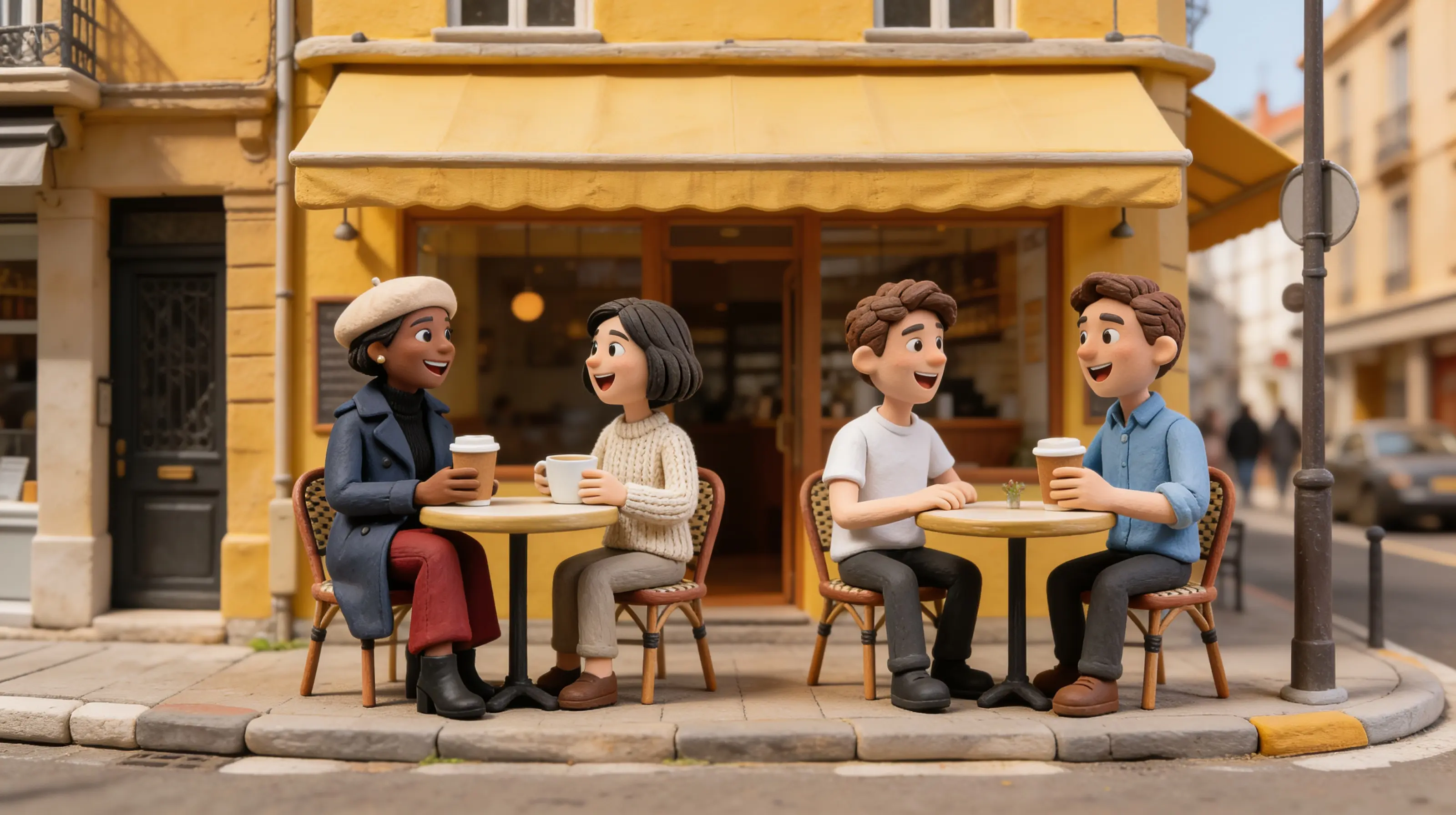

Reasoning-led image generator
Seedream 5 is useful when an image must satisfy more than a style request. It can follow relationships between objects, organize information, preserve selected regions during edits, and combine visual references with explicit layout rules.
Fast exploration, social assets, visual concepts, and prompt iteration.
Targeted changes when speed matters and the preservation rule is simple.
Complex compositions, typography, product detail, and high-value final candidates.
Detailed transformations where references, layout, and local preservation all matter.
Pick the right brief
Define product geometry, material, camera angle, reflections, surface, and the empty area reserved for copy.
Provide the verified facts, reading order, label list, diagram type, and which relationships must be exact.
Assign each reference a role—subject, palette, material, layout, or environment—before describing the final image.
State the change and the preservation boundary separately so identity, crop, text, or product details do not drift.
Prompt blueprints
Text to image
Design a vertical museum poster explaining the eight moon phases in correct order. One central orbital diagram, eight short labels, arrows showing direction, navy and warm-white palette, generous margins, no decorative planets, reserve the bottom 15% for exhibit details. Factual order and readable labels are mandatory.
Image edit
Use reference 2 only for the warm side-light and brass color response. Apply that lighting to reference 1. Preserve the product silhouette, logo, engraved text, camera position, background geometry, and crop exactly. Change no object other than light and reflected color.
Lite or Pro
Lite and Pro are not simply low- and high-quality buttons. The useful choice depends on how many constraints the image must satisfy, how expensive a missed detail would be, and whether you are exploring or approving. Begin with Lite when breadth matters; move to Pro when the brief has survived review and every relationship must hold together.
Use Lite to discover composition families, palette directions, camera angles, crop options, and alternative metaphors. Keep the factual requirements in the prompt, but accept that the purpose of the round is selection. Generate a small set, annotate why one direction works, and carry only that direction forward.
Lite is also practical for routine social assets and straightforward edits with one preservation boundary. A background replacement, color variation, or simple object removal does not always need the heaviest reasoning path.
Use Pro when the image combines several references, exact object counts, complex spatial relationships, dense materials, small product features, or planned typography. It is the better final candidate when a designer would otherwise spend substantial time rebuilding a nearly correct concept.
Pro cannot verify a false brief. Supply correct source facts and inspect the result. The model can organize a demanding composition, but approval for claims, labels, diagrams, and brand assets remains a human responsibility.
Generate mode is appropriate when the layout, environment, and visual language can be built from a written specification. Define the audience, canvas, hierarchy, subject, relationship, palette, materials, and reserved space. A real design problem produces more purposeful output than a stack of style adjectives.
Edit mode begins with an image whose identity, geometry, framing, or information deserves protection. Write two separate clauses: what changes and what must remain identical. Use additional references only when they provide a clearly named property such as lighting, material, color, or pose.
Briefing canvas
State what a viewer should understand in the first two seconds: recognize the product, compare three steps, feel a material quality, or notice a benefit. This keeps visual polish connected to a real purpose and determines which element deserves the strongest contrast.
List properties that cannot be invented, including product shape, number of components, scientific sequence, historical object, or branded color. If a fact is not known, research it before generation instead of asking the model to make the uncertainty look authoritative.
Name the primary focal point, the supporting information, and the quiet background. Describe reading order for posters or diagrams. Specify empty zones for headlines, buttons, or interface chrome so later copy does not cover the subject.
Use concrete placement language: bottle centered on the lower third, cap beside it at half scale, three ingredients behind, light from camera left. Exact counts and relative scale help Seedream 5 reason about the scene more reliably than vague requests for balance.
Describe what surfaces do under light. Brushed aluminum creates a long soft highlight; frosted glass diffuses the background; uncoated paper absorbs light. Material behavior gives the model a physical rule and prevents every object from receiving the same glossy finish.
Provide only verified wording, establish a short hierarchy, and request legible placement. Treat generated text as a draft to inspect, not a source of truth. For exact logos, legal copy, prices, or long paragraphs, reserve space and composite approved typography afterward.
Set orientation, aspect ratio, expected crop, background needs, and downstream use. A marketplace thumbnail, a widescreen presentation cover, and a print poster require different scale and negative space even when the subject is identical.
Reference control
Controls the recognizable face, character, product silhouette, or hero object. Use a clean view with enough resolution to see protected details. Say whether pose and expression may change while identity remains fixed.
Controls grouping, camera height, negative space, or reading order without importing its subject. Describe the transferable structure explicitly, such as a centered object with two small annotations on the right.
Controls surface response, texture scale, or finish. Name the target object and the property to borrow. This prevents a stone texture, metallic sheen, or paper grain from spreading across the entire composition.
Controls color relationships, shadow softness, direction, or contrast. Do not assume the model knows which feature you intended. Say that subject identity and layout come from the base image while only the color and light treatment come from this source.
Real deliverables
Lock product geometry, variant color, logo placement, and scale before exploring backgrounds. Ask for a surface and light setup that reveals the material. Review edges, reflections, cap or button placement, and package copy at full resolution. Export several crops from one approved art direction rather than regenerating the product for every placement.
Provide verified facts in the intended order, specify the diagram type, and limit labels to what a viewer can scan. Use Pro when several relationships must be correct. After generation, compare every arrow, number, stage, and label with the source before treating the visual as instructional.
Translate the article thesis into one visual relationship instead of illustrating every paragraph. Reserve quiet space for the headline and ensure the focal point survives responsive crops. Lite can explore metaphors quickly; Pro can refine the chosen direction when material detail or a complex scene supports the story.
Use edit mode to move an approved key visual into a new season, region, or format. Preserve the hero product and brand signals while identifying the exact environmental change. Keep regulated claims and campaign typography outside the generated layer until legal and localization review are complete.
Correction guide
Reduce the number of focal elements and state their rank. Give the hero a position and relative scale, then reserve explicit negative space for copy. Remove decorative objects that compete with the information. A simple wireframe reference can communicate structure more clearly than additional adjectives.
Separate change and preservation clauses. List the protected face, product, crop, text, and geometry before describing the new lighting or background. Use a tighter mask or simpler transformation where possible, and compare the output directly with the base image rather than relying on memory.
Label every source by role and remove duplicates. If two references disagree about lighting or palette, select one. Seedream 5 performs a clearer reasoning task when identity comes from one image, composition from another, and material from a third instead of every source controlling everything.
Shorten the copy, quote the exact words, and increase the intended text area. Verify each character afterward. For important brand, legal, pricing, or factual language, ask for a blank or lightly indicated text zone and place approved vector type in a design tool.
Seedream 5 FAQ
Stay with Lite while you are comparing broad compositions, palettes, crops, or metaphors. Switch to Pro after the direction is chosen and the remaining value depends on satisfying several constraints together: product detail, multiple references, typography, information order, or a delicate edit. Moving too early can spend more on concepts that have not yet earned refinement.
Both are first-class workflows. Generate is best when the complete visual system can be specified from a brief. Edit is best when an existing image contains truth that should survive, such as a face, product, layout, crop, or campaign asset. The right mode is determined by where the reliable source information already lives.
Use the fewest references that supply distinct evidence. One clean identity image plus one composition or material reference is often more controllable than a large mood board. Every additional source should have a named role. Remove any image that repeats information or contradicts the lighting, palette, wardrobe, geometry, or layout you want.
It can organize facts and visual relationships, especially when the source data, order, labels, and diagram type are explicit. It should not be treated as the fact checker. Verify all wording, numbers, arrows, categories, and sequences against an authoritative source, then rebuild critical text or vector elements when precision is required.
Use a high-quality base image and write the preservation boundary before the change: silhouette, component positions, logo, label, material, camera angle, crop, and scale. Ask only for the needed environmental or lighting transformation. Inspect edges, lettering, controls, reflections, and proportions at full resolution before approving the output.
A strong prompt describes a solvable visual decision: communication goal, subject truth, hierarchy, spatial relationships, material behavior, reference roles, text policy, and delivery format. It distinguishes requirements from preferences. That structure gives the model priorities, makes review objective, and lets you revise the failed instruction without rewriting the entire creative brief.
Quality gate
Check every claim, label, number, and sequence against the source.
Confirm the requested object count, placement, order, and material behavior.
Compare protected faces, products, typography, and framing with the input.
Inspect at full resolution and at the final crop before approving the image.
Real output gallery
 Example 1
Macro brass and stained-glass butterfly on a dew-covered velvet rose, physically plausible reflections and droplets
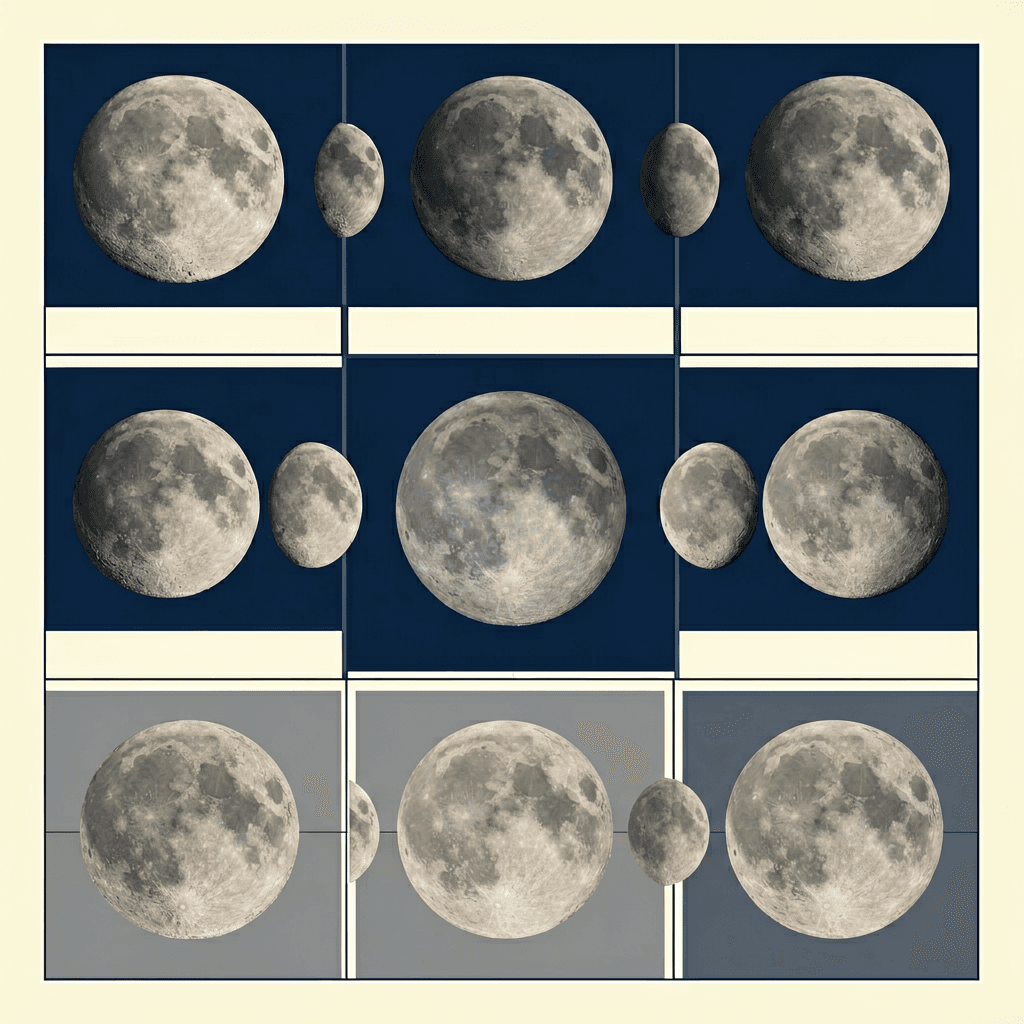 Example 2
Clean science exhibit poster, accurate moon phases, short readable labels, museum grid, restrained navy palette
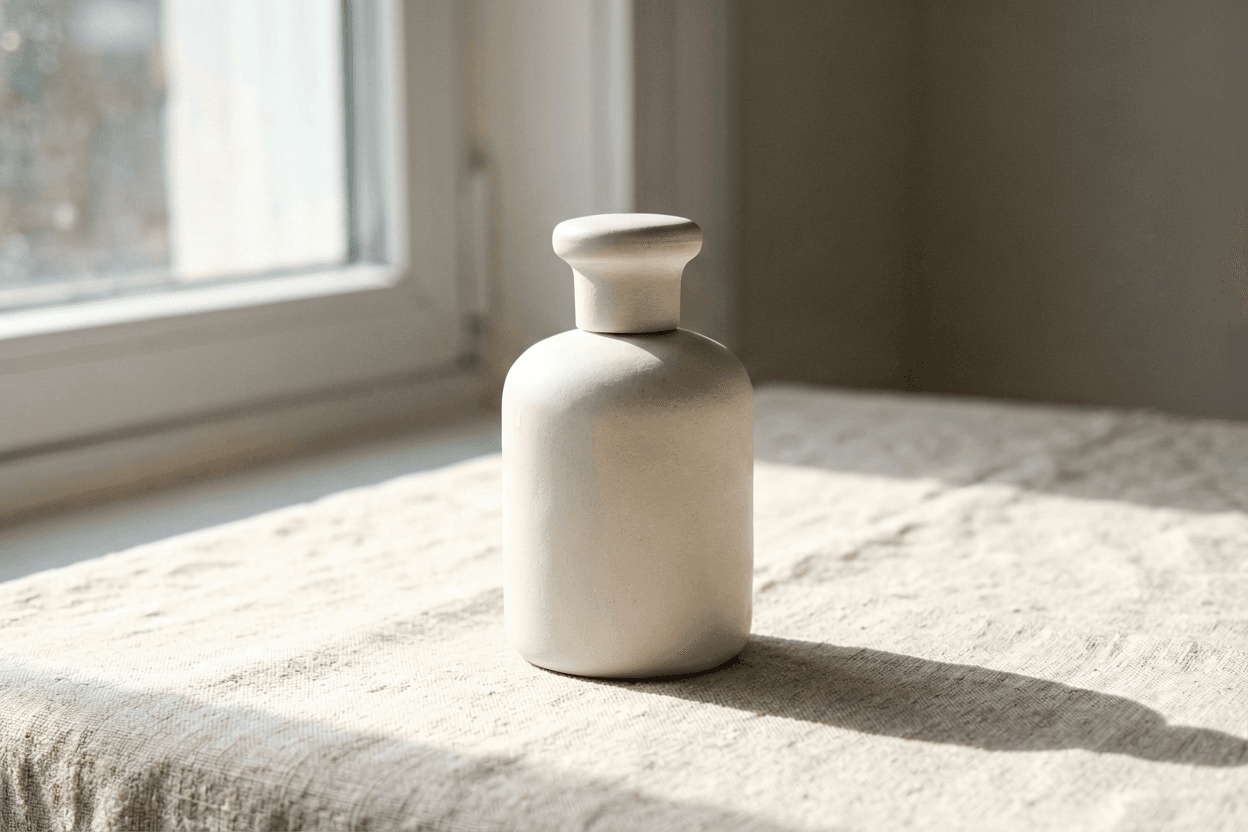 Example 3
Matte ceramic perfume bottle on linen, north window light, soft shadows, magazine still life, no brand text
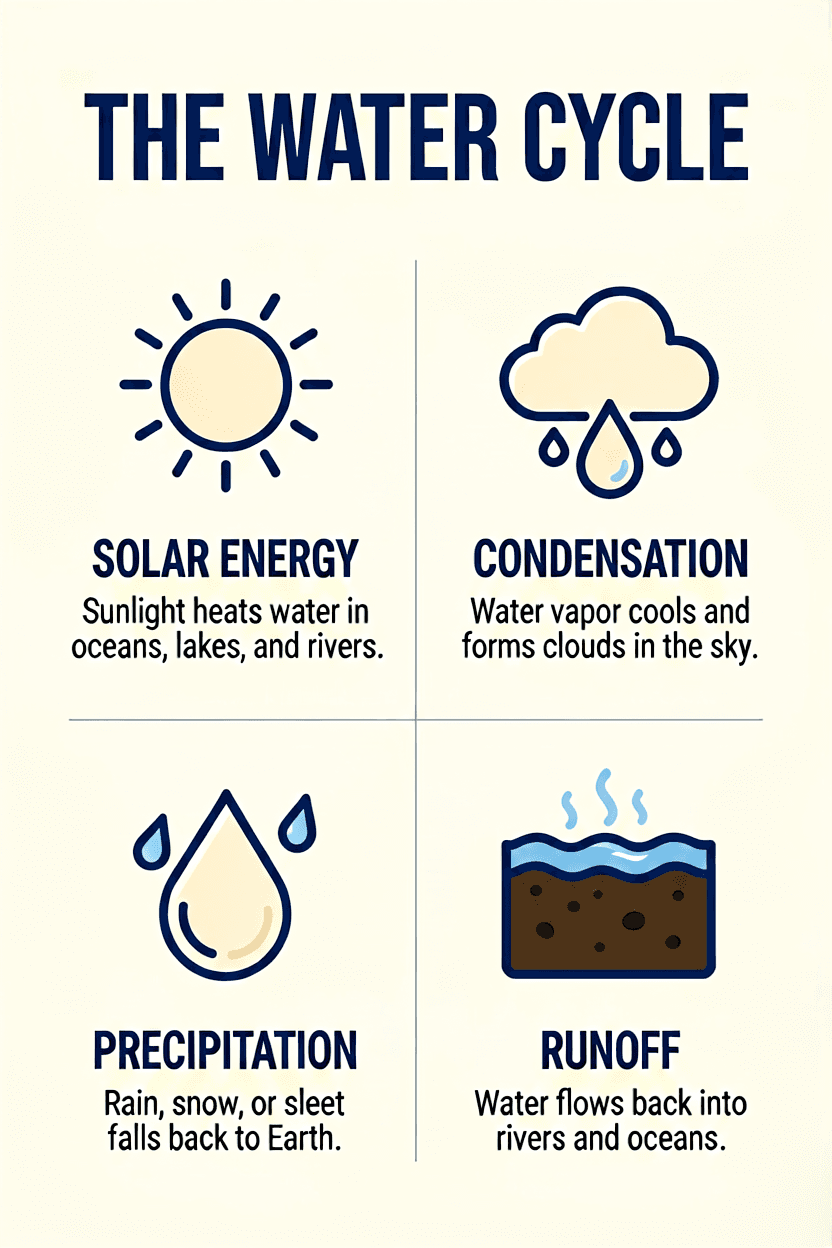 Example 4
Clean educational water-cycle layout, simple icons, short readable labels, navy and cream museum grid
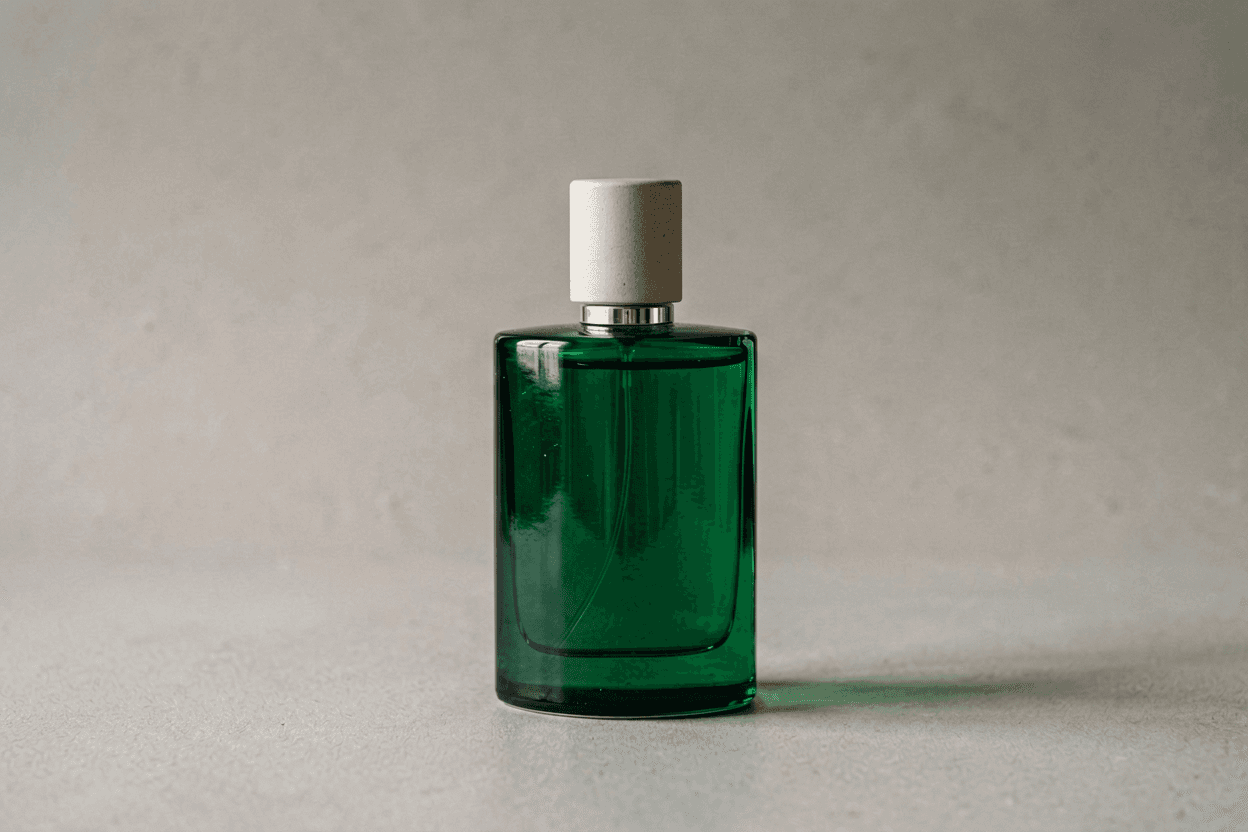 Example 5
Same perfume still life with emerald glass bottle instead of ceramic, identical composition and lighting
Related workspace
Use Voor for broad creative planning, then open the focused workspace when you want a model-specific starting point.
Open Seedream 5.0 Pro workspace