
Portrait photo example
Portrait · 9:16
Still photo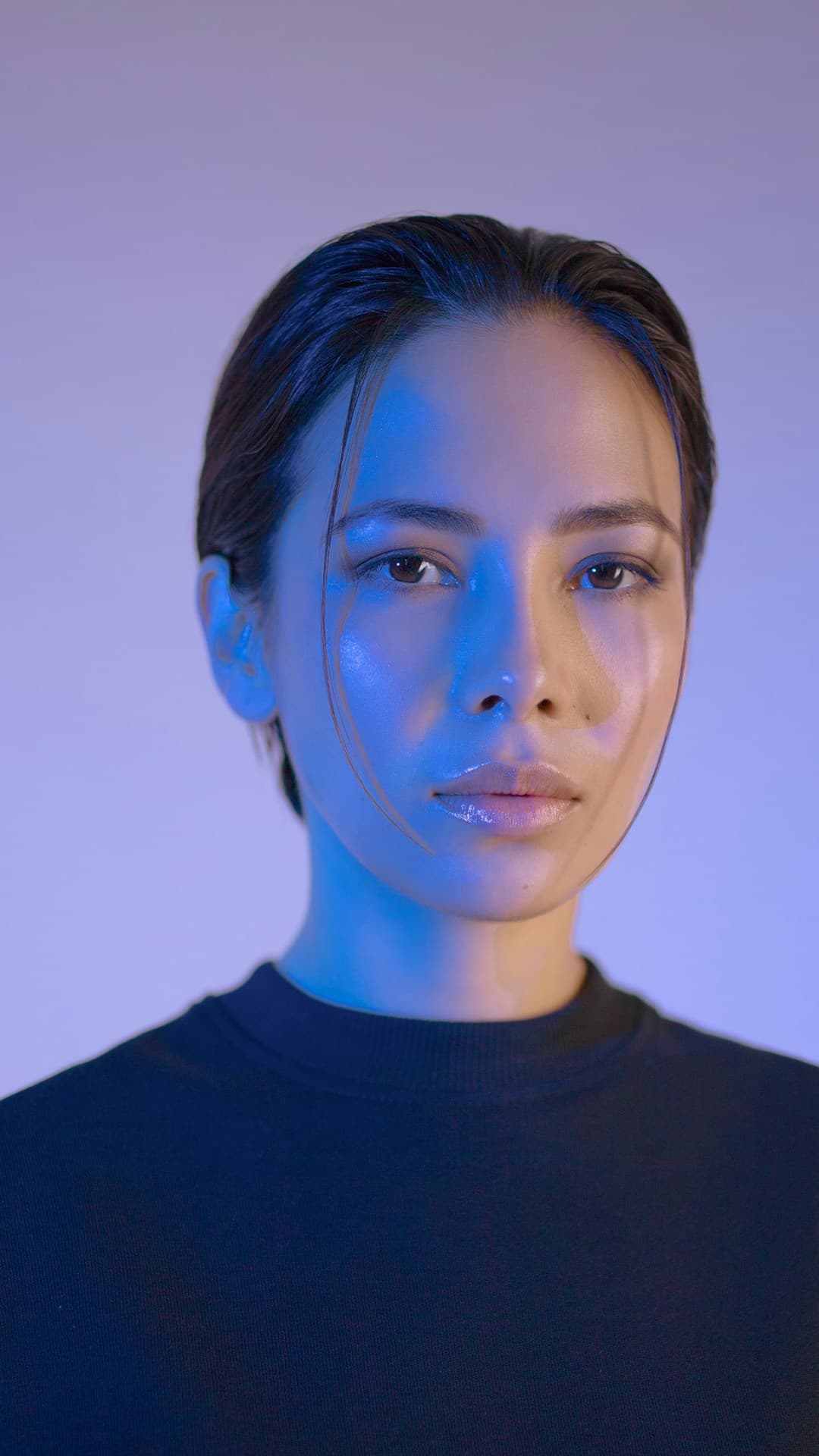
Animated clip
Motion prompt
Subject slowly turns head to the right and smiles gently. Hair reacts to a soft breeze from camera-left. Camera holds steady with subtle breathing motion.
Upload a photograph and describe the motion you want — photo to video turns stills into animated clips for ads, social posts, and creative projects.
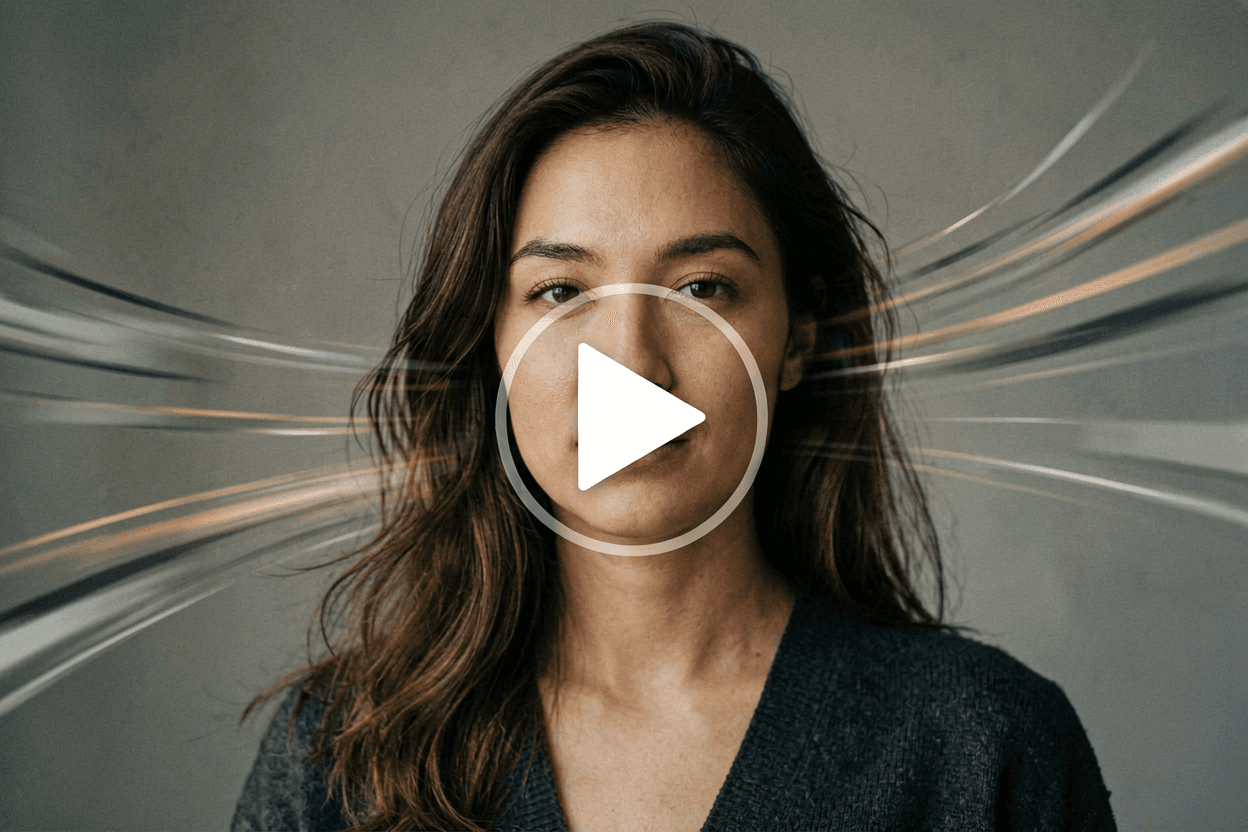
You have a photograph you love. A product shot, a portrait, a landscape from your last trip. Photo to video AI turns that single still image into a short animated clip — the subject breathes, the camera moves, the light shifts — and the result looks like captured footage rather than a filtered still. Upload your photo, describe the motion you want, pick a model, and watch your photograph come alive. Photo to video needs no editing timeline, no keyframes, no plugin installation.
Each card starts as a single frame. After it enters view there is a short transition — then the clip plays. Portrait and product use 9:16; landscape stays 16:9 — compact layout for phones and desktop alike.
Subject slowly turns head to the right and smiles gently. Hair reacts to a soft breeze from camera-left. Camera holds steady with subtle breathing motion.
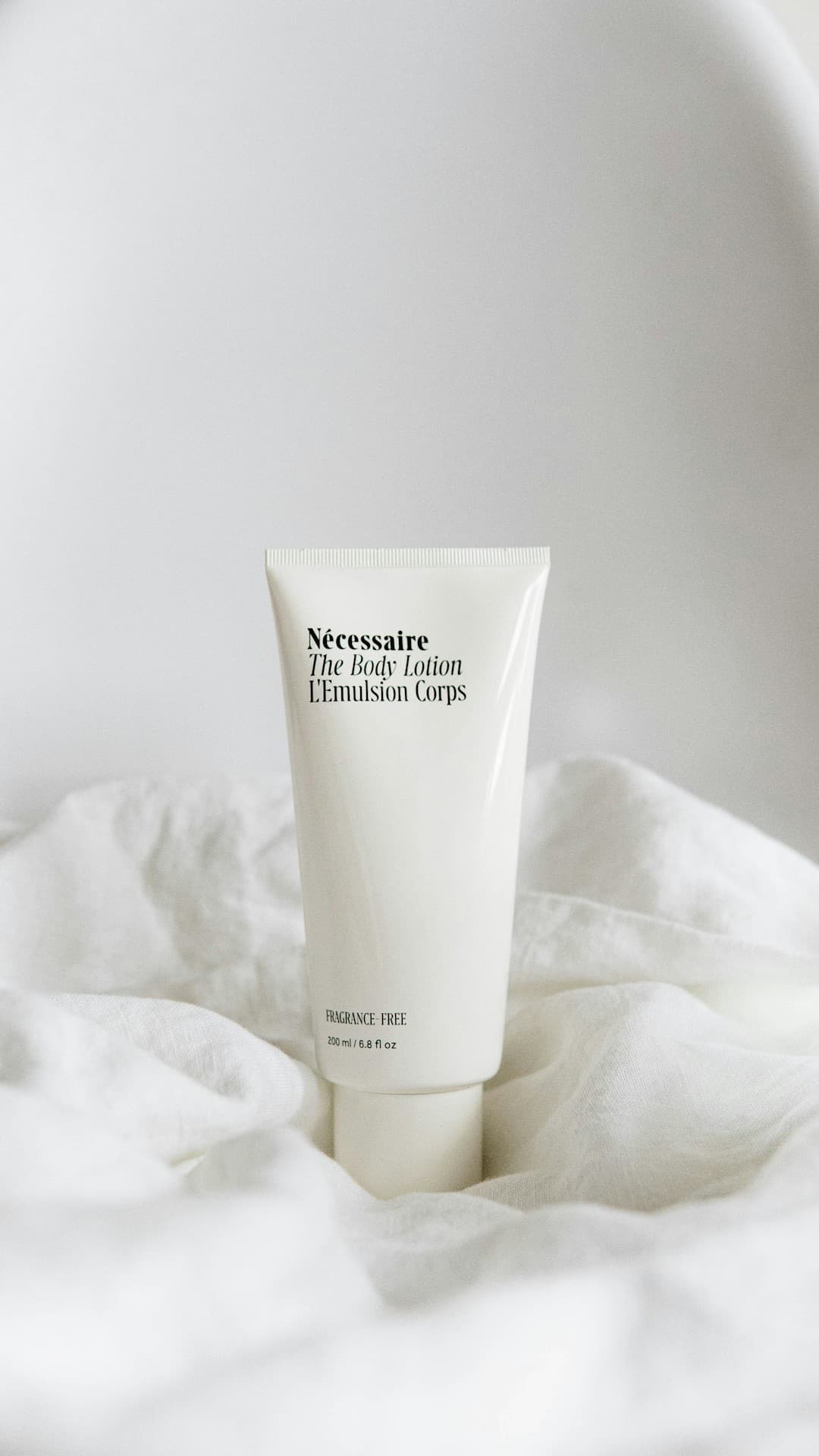
Static tripod product hero shot — no zoom, no orbital camera move. Preserve packaging text and labels razor-sharp and stable in frame; typography must never smear or swim. Gentle micro-motion only: subtle specular roll on the glossy pack, faint highlight drift, ambient background bokeh pulsing softly.
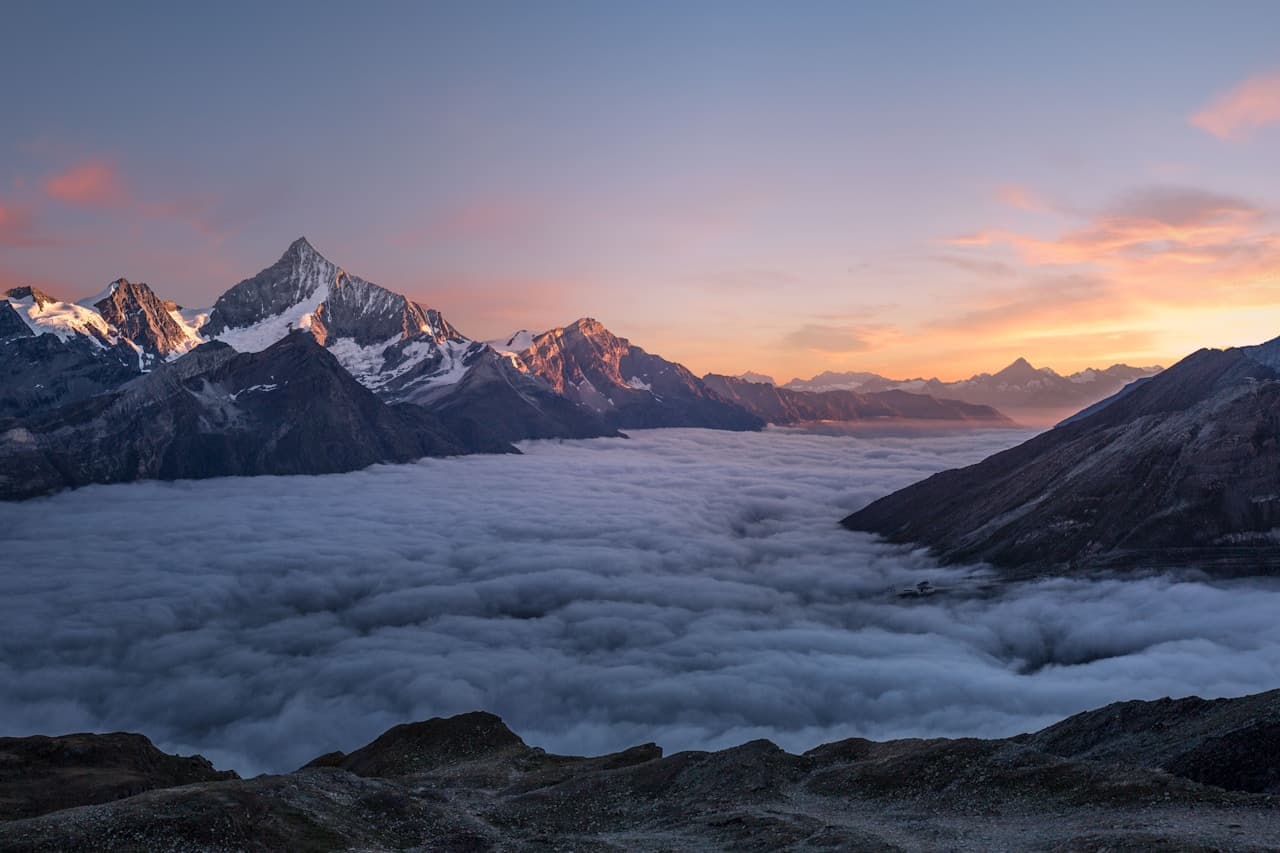
Clouds drift slowly from right to left. Water surface ripples naturally. Camera does a gentle crane down toward the foreground.
Upload your photograph once, write your motion prompt once, and switch between Seedance 1.5 Pro, Vidu Q3, Kling v2.1, and FLUX2 klein to compare how each model animates the same still. No re-upload, no lost settings. The photo to video generator keeps your source image pinned while you explore different motion styles.
Vidu Q3 is tuned for identity preservation. When you run a portrait through photo to video, faces, eyes, jaw structure, and hair carry through motion better on Vidu Q3 than on generic models. If your project is a headshot, a fashion reveal, or a brand spokesperson clip, start here.
Seedance 1.5 Pro handles professional camera language well. Slow dollies, crane shots, dramatic push-ins — when your photo to video brief reads like a shot list, Seedance delivers the most convincing cinematic motion from a single still.
Kling produces more artistic, sometimes painterly motion. When you want your photo to video result to feel like an illustrated animation rather than realistic footage — for creative projects, music visuals, or artistic social posts — Kling is the right model.
FLUX2 klein renders quickly, which makes it ideal for testing motion direction before committing to a longer render. Draft your idea on FLUX2 klein, confirm the motion feels right, then switch to a higher-fidelity model for the final take.
Every render is saved in your task history. Download winners as MP4, compare multiple takes from the same photograph, and build a library of animated stills. Treat each render as one frame in a contact sheet — the workflow rewards iteration.
Photo to video AI works from the detail it finds in your source image. A sharp photograph with clear edges, balanced exposure, and a centered subject gives the model real texture to animate — blurry or heavily compressed uploads force the model to invent detail, which reads as morphing rather than natural motion. At least 1080px on the longest edge is the minimum for clean photo to video results.
Lead with verbs. "Subject turns head slowly", "fabric ripples in wind", "camera dollies left" — concrete action words produce coherent photo to video motion. A reliable pattern: describe the camera move first ("slow crane down"), then the subject motion ("hair reacts to breeze"), then the environment ("rain falls steadily"). Separating these layers helps the model know what moves and what stays still.
Choose a photo to video model from the dropdown — Vidu Q3 for portraits, Seedance for cinematic, Kling for stylized, FLUX2 for speed — and hit generate. Two to five seconds is the sweet spot. Generate multiple takes from the same photograph, compare them side by side, and download the best. Photo to video is a draft tool: the more takes you try, the better the final selection.
When you upload a photograph and hit generate, the photo to video model analyzes your image for depth cues, edges, lighting direction, and subject boundaries. It then synthesizes motion frames that respect those structures — the subject moves, the camera shifts, light changes — while keeping the original composition recognizable. Unlike a Ken Burns zoom or a parallax GIF, photo to video AI infers optical flow and micro-expressions, so the result looks like real footage rather than an animated still.
Seedance tends toward cinematic camera moves — dollies, cranes, push-ins. Vidu Q3 locks portrait identity better than most, so faces stay recognizable through motion. Kling handles stylized, painterly motion well for artistic projects. FLUX2 klein is fast for exploration when you are still figuring out the right motion direction. The same photograph, the same prompt, four different interpretations — switch models with one click.
Photo to video is not a replacement for a real camera crew. It is a way to get motion from stills you already have — product photos, portraits, landscapes, concept art — without reshooting. For the 80% of content where a two-second animated loop is enough to test creative direction, photo to video saves days of production time and thousands of dollars in studio costs.
Same packshot, different motion, no reshoot. E-commerce teams animate hero product shots into PDP loops, paid-social refreshes, and carousel animations that stop the scroll.
A portrait photo with subtle motion — a head turn, a blink, hair in wind — performs better on Instagram Reels and TikTok than a static crop. Photo to video lets creators animate portraits without After Effects.
Founders and agencies animate storyboard frames and key art into rough motion comps before committing to a full production shoot.
Same photograph, different motion prompts per region — a subtle pan for one market, a dramatic push-in for another. Adapt motion without flying crews.
Usually close on sharp, well-lit portraits — especially with Vidu Q3 which is tuned for identity preservation. The model preserves perceived identity rather than pixel-exact features. Hard profiles, heavy occlusion, or motion blur in the source photo reduce accuracy. Expect to reroll a few times for portrait-grade results.
Any photograph works: products, landscapes, architecture, food, pets, concept art. The model reads depth and edges from whatever you upload. Portraits are the hardest because viewers notice identity drift immediately — but product shots, nature photos, and stylized illustrations animate reliably.
1080p or higher on the longest edge. The model uses detail from the source to maintain texture during motion — a 480px thumbnail gives the model very little to work with and the output will look soft or blurry.
No. Photo to video on Voor AI runs in the cloud through your browser. Upload the photograph, configure settings, wait for the render, download the MP4. No After Effects, no local GPU, no plugin installation.
Keep moves modest, avoid conflicting verbs in the prompt, and use shorter durations. Most artifacts come from asking too much in a single prompt — "subject walks, talks, gestures wildly, camera orbits, background explodes" will produce a mess. One clear action per clip is the rule.
For stylized product loops, social teasers, and concept tests — often yes. For documentary realism, talking-head interviews, or broadcast spots, real footage still wins. It works best as a complement to production, not a wholesale replacement.
Upload a reference frame—product packshot, character turnaround, or location plate—and describe how it should move. Voor AI preserves identity better than text-only runs when faces, logos, or packaging edges must stay stable.
Use this when the image already matters: a product shot, portrait, pet photo, character frame, or generated still that should stay recognizable while the camera or subject moves.
Image-to-video motion
Reference-led video keeps composition closer than prompt-only generation.
Photo-to-video workflow
Upload a clean source image, then add restrained camera motion.

3D camera movement
Orbit, dolly, crane, and push-in prompts work best from readable depth.
Product motion
Slow clockwise orbit around the product, label remains sharp, soft studio reflection, no shape changes, clean ending frame.
Portrait motion
Subject breathes subtly, hair moves in a light breeze, eyes stay consistent, background remains still, gentle handheld camera.
Scene motion
Camera pushes through the doorway, warm light flickers, curtains move slightly, no new objects appear.
High-frequency detail can shimmer when motion is synthesized. Start with clean plates: balanced exposure, minimal JPEG artifacts, and subjects centered with a little headroom for camera motion.
If the still has transparency, flatten onto a neutral background before upload so the model infers depth consistently.
Anchor global motion first (“slow crane down”, “gentle handheld sway”), then local motion (“hair reacts to wind from camera-left”). Splitting scales reduces impossible physics glitches.
When animating products, specify contact shadows and tabletop reflections; models otherwise float objects.
E-commerce teams animate SKU stills for PDP loops; growth teams refresh ad creatives without full reshoots; founders prototype pitch narratives before booking production.
Combine with text to video for exploration, then lock hero frames here for brand-consistent motion.
Image to video AI is strongest when the reference frame already looks like the world you want to animate. A clean product photo, polished character image, or approved campaign still gives the video model fewer identity decisions to invent. If the still has bad lighting, soft edges, or unreadable packaging, fix that first with image to image AI, restoration, or super resolution.
Treat the prompt as motion direction, not a second image prompt. Describe subject movement separately from camera movement: a slow push-in, a gentle orbit, hair moving in wind, fabric reacting to a turn, a product rotating on a table. Image to video AI becomes less chaotic when global motion and local motion are separated.
For brand assets, write what must not change. Product shape, label placement, clothing, face, color, and background can drift if the prompt only asks for cinematic motion. A preserve list gives image to video AI a clearer approval target.
Product teams use image to video AI to turn catalog stills into PDP loops and ad variations. Creators use it to animate portraits, pets, illustrations, and character frames. Agencies use it to test motion before booking a shoot. The value is not only speed; it is the ability to test motion ideas while keeping the approved visual identity close to the original still.
A practical workflow is layered: generate or upload the still, improve it if needed, animate with image to video AI, review the clip frame by frame, then enhance or extend only the best take. That sequence saves credits because the expensive motion pass starts from a stronger input.
Related tools matter on this page because image to video AI often depends on text to image, image to image, video enhancement, and app presets. The full horizontal catalog below makes those next steps visible without forcing users back into search.
A reference frame should already contain the main decisions: subject, crop, lighting, background, style, and visual hierarchy. Leave room for movement at the edges if the camera will push, pan, or orbit. Avoid overly tight crops when the subject needs to move. Clean source images reduce drift because the model can focus on temporal change instead of repairing basic composition.
For products, remove clutter before animation. A simple table, controlled reflection, clear contact shadow, and readable package shape are easier to animate than a busy lifestyle scene with many competing edges. If the goal is an ad loop, restrained motion often looks more premium than dramatic movement.
For portraits and characters, prioritize identity. Use a sharp face, visible clothing, and a pose that supports the intended action. If the face is tiny or partially hidden, the result may drift. If a character must remain consistent across several clips, reuse the same approved still and vary only the motion instruction.
For illustrations and design assets, describe whether the motion should preserve the flat graphic style or introduce cinematic depth. Without that instruction, a model may turn a clean graphic into a pseudo-realistic scene. Clear style preservation keeps brand assets, icons, and mascots closer to the original art direction.
After generation, review the clip with the source still beside it. The best output is not the one with the most movement; it is the one that keeps the important parts stable while adding enough motion for the placement. That distinction matters for product ads, creator content, pitch videos, and social loops.
Image to video AI should preserve the reason the still was approved. If the image works because of a face, product label, pose, lighting setup, or graphic style, write that preservation requirement into the prompt. Motion is valuable only when it strengthens the asset instead of replacing the visual identity.
Use motion scale carefully. A locked product shot might need a small push-in or turntable feel. A character portrait might need breathing, hair movement, or a subtle expression change. A fantasy scene might handle stronger camera travel. Matching motion intensity to the use case makes the output look intentional rather than randomly animated.
If the clip fails, diagnose the source before changing models. A blurry reference, tight crop, noisy background, or confusing pose can cause instability across many tools. Fixing the still often improves image to video AI more than rewriting the motion prompt ten times.
For ecommerce, build variants around one approved source: slow reveal, soft light sweep, lifestyle camera sway, and clean product loop. This gives a paid-media team different creative angles while keeping the product consistent. For creators, the same method works with portraits, pets, artwork, and illustrated characters.
Image to video AI pairs naturally with enhancement and extension tools. Keep only the best motion take, then improve resolution or continue the ending if the clip needs more time. This layered approach is more reliable than asking one generation to solve reference quality, motion, duration, and polish in a single pass.
Before sending a clip to an editor or client, save the source still, prompt, model, ratio, duration, and selected output together. That context makes future revisions faster. If the client asks for the same product with slower motion, the team can reuse the approved source instead of rebuilding the whole scene.
Image to video AI should also be reviewed against placement. A marketplace loop needs a stable product and a clean ending. A creator clip can accept more personality. A launch teaser may need a more cinematic move. The right motion style depends on where the video will live, not only on what looks impressive in the preview panel.
Use batch thinking when building campaigns. Create one approved still, then generate several motion directions: slow push, gentle orbit, lifestyle sway, detail reveal, and clean loop. Comparing those versions gives the team motion options while preserving the same visual foundation.
If a video output changes the product, face, logo, or key background too much, return to the still. Tighten the crop, simplify the scene, or add stronger preserve language. A better source image often solves issues that repeated animation attempts cannot fix.
The full related catalog below is part of this handoff. Users can jump back to image editing, forward to video enhancement, sideways to text exploration, or into app presets without leaving the production path.
Optional cookies help us understand usage and measure ads. Essential cookies stay on so Voor works.